
Several clips. One continuous video.
Merge video files in the order you choose. Reuse inspected uploads, check compatibility and export one continuous result from the batch workspace.
Free account · Local uploads · Background processingMerge video. From source to download.
- 01
Choose the sources
Upload local files or reuse inspected uploads from your account.
- 02
Set the workflow
Merge video is selected. Review the source order, output profile and task settings.
- 03
Review and submit
Check that the chosen settings fit each source, then queue the group.
- 04
Download the results
Return to each task for its status and available downloads.
Merge video settings
Choose the operation here and it stays selected through registration or sign-in. Upload and inspect your source to open its settings. Starting values are editable; check them against your file before submitting.
Workflow
Merge files is selected on entry with a video output profile.
Source order
Reorder uploaded or reused files before submitting.
Merge strategy
Automatic, compatible stream copy or re-encode to a common configuration.
What to check before exporting
The first video determines common dimensions and frame rate when normalizing a merge. Only the first video and audio stream of each source are merged. This joins clips end to end; it does not provide transitions, picture-in-picture or a multitrack editing timeline.
Choose a compatible output profile and review the source streams, selected range and final settings. Processing uses structured controls, and incompatible combinations are rejected before queueing. Download the requested result when final validation completes.
A real workspace. A result you can inspect.
This actual product screenshot shows source playback, range selection, an uploaded-audio area and encoding settings. It illustrates the shared converter; your operation opens its own relevant controls after inspection.
A processed preview creates a separate short task. It covers the first ten seconds of your range at up to 360p in a compatible format. Image and subtitle exports still need inspection of the requested final download.
Explore the Media Converter overview →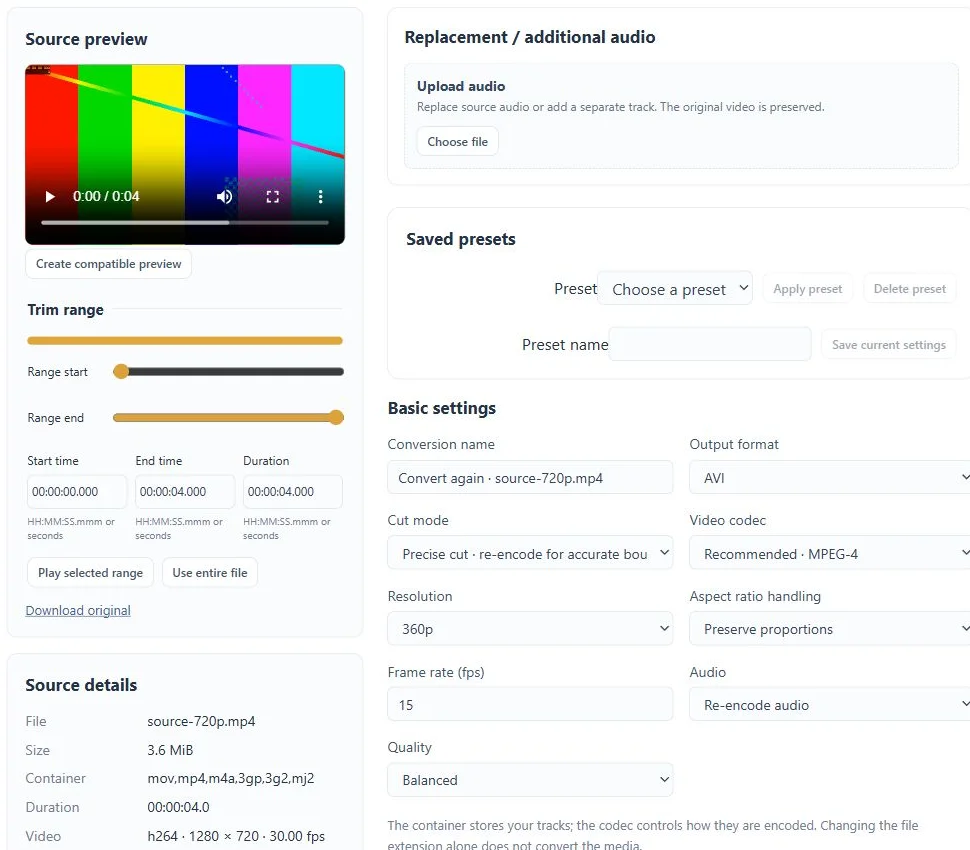
Questions about this workflow
Can every combination be copied without encoding?
No. Stream copy requires compatible streams and container settings. Choose automatic strategy or re-encoding when the source parameters differ.
Can I close the tab while processing?
Yes. Submitted conversion tasks run in the background. Return to your account to check progress and download results before the retention period ends.
What are the upload and storage limits?
Current source limits are 2 GiB and two hours per file. Files have a 72-hour retention period; task, collection and resource limits also apply. The workspace shows the applicable limits. Free and Pro currently share feature access.
Keep working with your media.
Split video
Split a video by segment duration, explicit time boundaries or existing chapters. Submit one inspected source and download each completed part separately.
Batch converter
Convert several files with shared settings and a separate result for every source. Reuse inspected uploads and follow each task from queue to download.
Multiple outputs
Reuse one inspected source to create several output profiles, with separate conversion tasks and downloads.