Skip to content
Cyber Search MatchFace indexing and visual search.
A face. A frame. A new lead.

Find the face.
Find the moment.
Follow the story.

Discover where a face appears in indexed public photos. Explore people, vehicles and useful moments in your video. Turn a visual clue into something you can inspect.

Free account · No card required · Right in your browser

Photo → matches → sourceVideo → tracks → moments
Search by Face
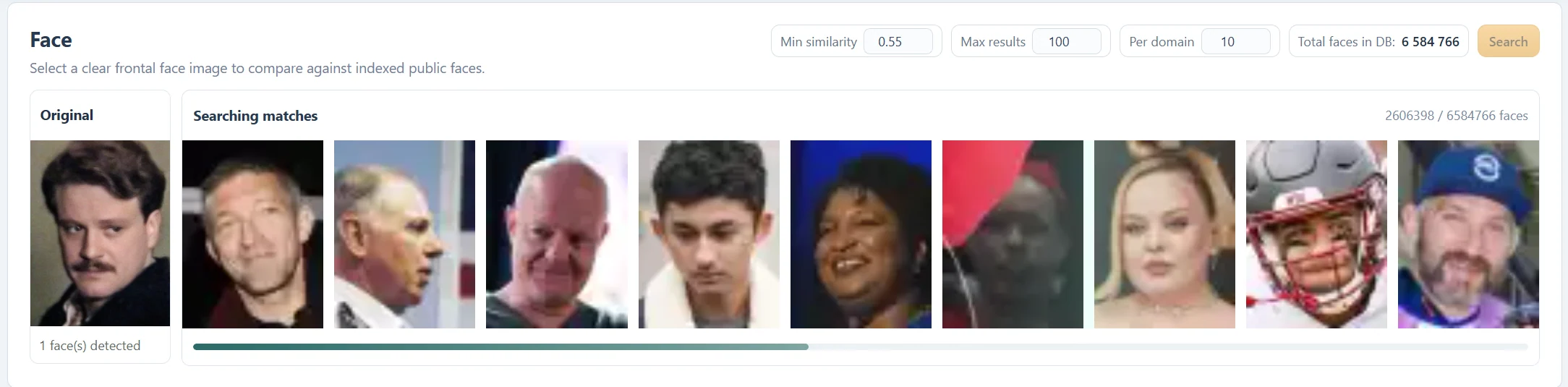
Real Face Search comparing one uploaded face with a strip of indexed candidate photographs
Actual search in progress · candidates are not confirmed matches.
Intelligent Video Search
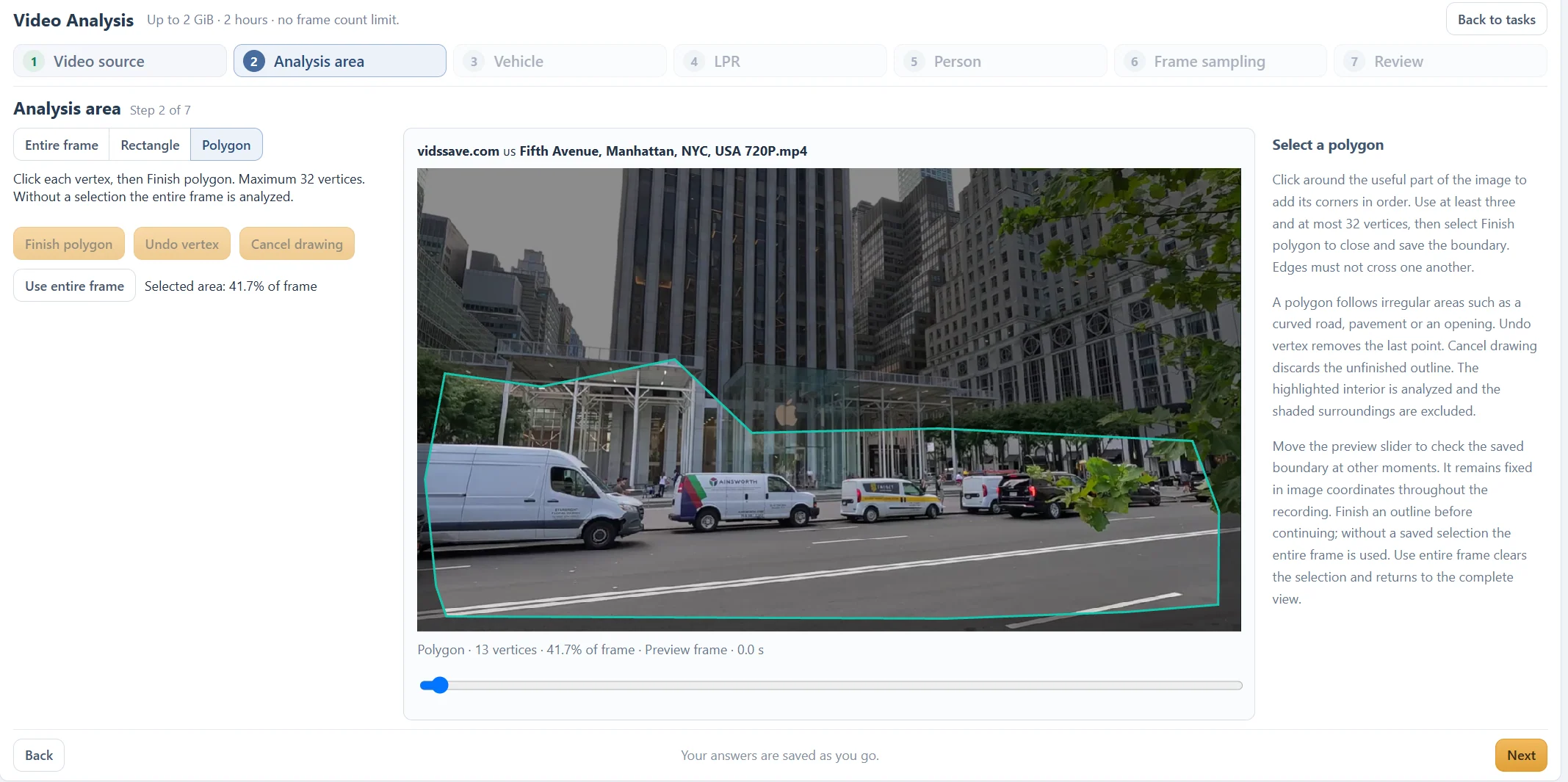
Real Video Analysis wizard with a polygon selecting a road area in a street recording
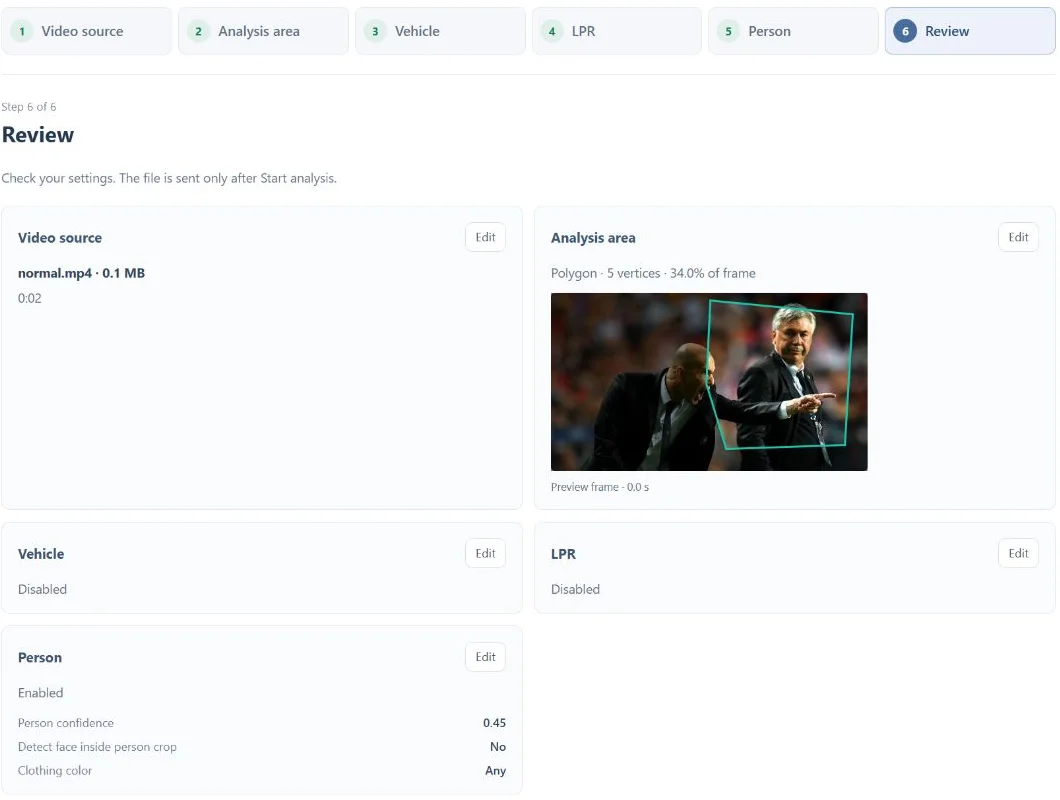
Choose the area. Find the people, vehicles and frames.

Actual product examples. Open any image for a closer look.

Face search Video analysis Audio insights Your own voice Media conversion
A closer look

A closer look at
your next workflow.

Follow a visual clue, understand a recording or prepare your next creation. Your tools belong together.

Cyber Search Match / Media Converter
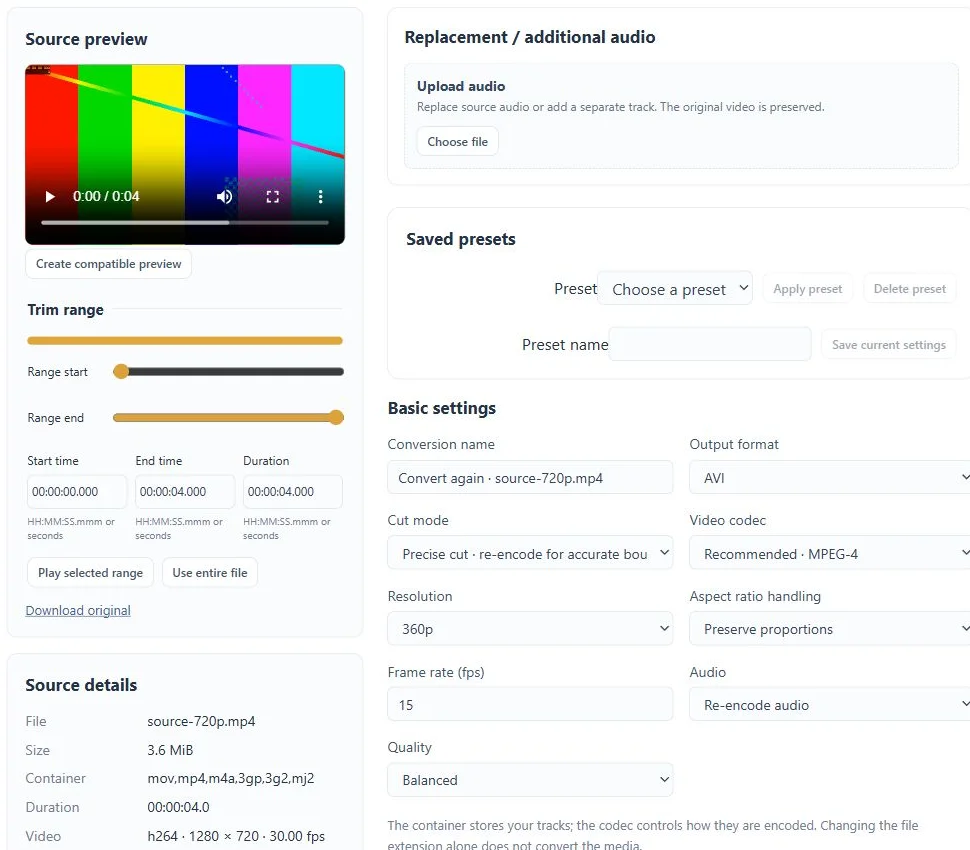
Media Converter workspace screenshot with example media
Actual product interface · example media
Choose your starting point

One account.
A whole toolkit.

Explore all tools ↗
Create

Give your media its next form.

Voice & media tools
01 / Create

Voice Changer

Train your own voice model, convert a song’s vocals or send a short recorded message through it. Record, review and create in one browser workspace.

Explore voice changer →
02 / Create

Media Converter

Convert video and audio, trim a range, extract sound and combine processing steps in a guided workspace.

Explore media converter →
03 / Create

YouTube Video Downloader

Prepare an available public YouTube video, choose a returned resolution and download the file or use it for Video Analysis. Source restrictions can affect availability.

Explore youtube video downloader →
04 / Create

Resize video

Resize video to 360p, 480p, 720p or 1080p, or enter custom dimensions. Keep the source proportions and inspect the output geometry before exporting.

Explore resize video →
05 / Create

Rotate video

Rotate a sideways or upside-down video by 90°, 180° or 270°. Check the oriented source, choose your output and download a newly encoded video.

Explore rotate video →
06 / Create

Crop video

Crop a rectangular area from your video using precise pixel coordinates. Preview the selected area, preserve its proportions and export the result.

Explore crop video →
07 / Create

Change video speed

Speed up or slow down video from 0.25× to 4× with matching audio timing. Preview the pace and export the selected range as a new video.

Explore change video speed →
08 / Create

Replace video audio

Replace the sound in a video with an uploaded audio file. Choose how different durations should behave, preview the combination and export your new soundtrack.

Explore replace video audio →
09 / Create

Video to GIF

Create an animated GIF from a selected video range. Set the dimensions and frame rate, apply optional image adjustments and download a silent animation.

Explore video to gif →
10 / Create

Extract video frame

Extract a PNG from the beginning of your selected video range, or export a timed series of PNG frames in a ZIP archive.

Explore extract video frame →
11 / Create

Audio volume

Increase or reduce audio volume with a gain value in decibels. Preview the recording, watch for clipping and export a new audio file.

Explore audio volume →
12 / Create

Normalize audio

Normalize perceived audio loudness to a LUFS target with a true-peak limit and loudness-range setting. Review the two-pass processing stages and download the result.

Explore normalize audio →
13 / Create

Merge video

Merge video files in the order you choose. Reuse inspected uploads, check compatibility and export one continuous result from the batch workspace.

Explore merge video →
14 / Create

Merge audio

Join audio files end to end into one recording. Choose the order, select an audio output and use compatible stream copy or re-encoding.

Explore merge audio →
15 / Create

Split video

Split a video by segment duration, explicit time boundaries or existing chapters. Submit one inspected source and download each completed part separately.

Explore split video →
16 / Create

Batch converter

Convert several files with shared settings and a separate result for every source. Reuse inspected uploads and follow each task from queue to download.

Explore batch converter →
17 / Create

Flip video

Flip video horizontally, vertically or on both axes. Preview the reflection and encode a new file.

Explore flip video →
18 / Create

Add audio track

Add an uploaded recording as a separate audio track while retaining selected original tracks in a compatible video container.

Explore add audio track →
19 / Create

Audio delay

Adjust audio timing with a positive delay or a negative offset while preparing your video output.

Explore audio delay →
20 / Create

Video watermark

Add an uploaded logo or a text watermark to a video, with controlled position, size and opacity.

Explore video watermark →
21 / Create

Video color

Adjust video brightness, contrast, saturation and gamma with explicit values and a processed preview.

Explore video color →
22 / Create

Denoise video

Reduce visible video noise with an adjustable filter strength. Compare motion and fine detail before encoding your result.

Explore denoise video →
23 / Create

Sharpen video

Apply adjustable video sharpening and compare the result with the source before exporting.

Explore sharpen video →
24 / Create

Deinterlace video

Deinterlace interlaced footage before preparing a progressive video output.

Explore deinterlace video →
25 / Create

Stabilize video

Analyze camera movement and render a stabilized video using the available two-stage stabilization filters.

Explore stabilize video →
26 / Create

Video fade

Add video fade-in and fade-out durations to your selected range before encoding.

Explore video fade →
27 / Create

Audio fade

Add audio fade-in and fade-out durations and export a recording with smoother boundaries.

Explore audio fade →
28 / Create

Audio tempo

Speed up or slow down an audio recording from 0.25× to 4× while preserving pitch.

Explore audio tempo →
29 / Create

Audio pitch

Change audio pitch by semitones while preserving tempo, then preview and export the selected range.

Explore audio pitch →
30 / Create

Audio equalizer

Adjust bass, mid and treble bands with explicit gain values and a processed audio preview.

Explore audio equalizer →
31 / Create

Audio dynamics

Apply an audio compressor and peak limiter with configurable threshold, ratio and limiter ceiling.

Explore audio dynamics →
32 / Create

Audio noise reduction

Apply spectral or non-local audio noise reduction to an uploaded recording and listen for the useful trade-off.

Explore audio noise reduction →
33 / Create

Mix audio

Mix selected source audio and up to four uploaded audio files into a single output soundtrack.

Explore mix audio →
34 / Create

Add subtitles

Add uploaded UTF-8 SRT or WebVTT subtitles to a compatible video container as a separate subtitle track.

Explore add subtitles →
35 / Create

Burn subtitles

Burn uploaded text subtitles into video frames so the captions remain visible without a selectable subtitle track.

Explore burn subtitles →
36 / Create

Extract subtitles

Extract a compatible embedded text subtitle stream from a video to an SRT, WebVTT or ASS file.

Explore extract subtitles →
37 / Create

Remove subtitles

Remove separate subtitle streams from a video while choosing your output format and encoding settings.

Explore remove subtitles →
38 / Create

Convert subtitles

Convert uploaded SRT or WebVTT captions to a compatible SRT, WebVTT or ASS output within a video task.

Explore convert subtitles →
39 / Create

Edit media metadata

Edit title, artist, album and comment tags, and choose whether to preserve existing chapters where the output supports them.

Explore edit media metadata →
40 / Create

Remove media metadata

Remove inherited private container and track tags, including inherited chapters, when preparing your media output.

Explore remove media metadata →
41 / Create

Audio cover art

Keep, remove or replace audio cover art when exporting a compatible MP3, FLAC or M4A file.

Explore audio cover art →
42 / Create

Split audio

Split audio by duration, explicit boundaries or existing chapters and download each part as an individual file.

Explore split audio →
43 / Create

Multiple outputs

Reuse one inspected source to create several output profiles, with separate conversion tasks and downloads.

Explore multiple outputs →
44 / Create

Compress audio file

Reduce audio file size using an encoded format and an appropriate bitrate, then compare the requested output with the source.

Explore compress audio file →
Less switching. More doing.

Bring a file.
Leave with an answer.

Guided settings, background processing and results you can come back to. Start in your browser and keep your work in one place.

  1. 01

    One account. Your workspace.

    Create an account and confirm your email, or use an available sign-in option.

  2. 02

    Bring a photo, video or recording.

    Choose a tool, upload your file or record your own voice, then review the settings.

  3. 03

    Follow the work. Explore the result.

    Check task progress, inspect the output and download available files. Return to your history whenever you need it.

See how it works →
Start with a real reason

One file.
A completely new possibility.

See the steps before you sign up. Pick a scenario, bring your own media and make the next move.

01 / Find your photos

Your face.
Someone else’s website?

Wondering where your photographs appear online? Start with one photo and explore matching faces in our index of public web images.

  1. Upload a clear photo

    Use a clear image with exactly one human face.

  2. Search and compare

    Review matches, similar faces, domains and image variants. Scores help you compare; they do not prove identity.

  3. Open the source

    Visit the original public page to check the context. Create a share link only if you want to share the saved result.

Explore your photo’s trail

Coverage depends on the indexed public pages. A search cannot confirm that a photo is absent from the entire internet.

Cyber Search Match / Face Search
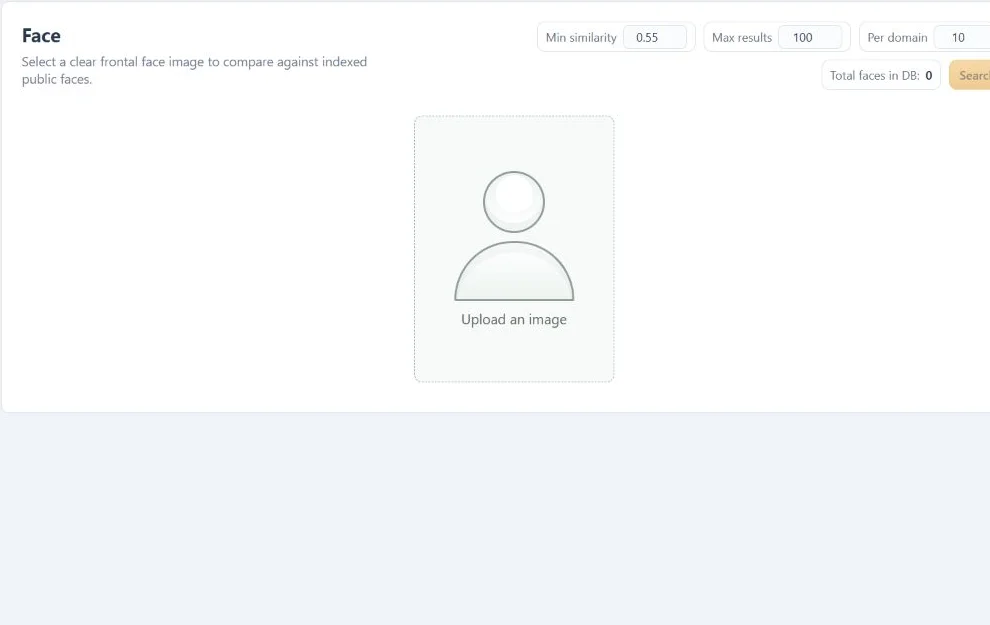
Face Search workspace screenshot with example media
Actual product interface · example media
A visual trail back to the source.
02 / Make a smaller video

Big video.
Small enough to send.

That 720p clip does not have to stay a large MP4. Choose the size, frame rate and format that fit your next step.

  1. Upload your video

    See its duration, video and audio tracks, resolution and file size.

  2. Choose your output

    Set AVI, 360p and 15 fps, or use another compatible profile. Trim the range and review quality settings.

  3. Convert and download

    Follow real processing progress, compare the output properties and download the finished file.

Make your next file lighter

A lower resolution or bitrate can reduce file size at the cost of detail. The original upload is preserved.

Cyber Search Match / Media Converter
Media Converter workspace screenshot with example media
Actual product interface · example media
MP4 · 720p · 30 fps → AVI · 360p · 15 fps
03 / Find the moment

Minutes of footage.
Moments you can explore.

Go from a long recording to tracks, timestamps and snapshots you can inspect. Keep the original evidence close to every result.

  1. Bring your recording

    Upload a video and choose the range and analysis settings.

  2. Let the task run

    Follow background processing while people, vehicles and available face or plate observations are collected.

  3. Jump to the evidence

    Expand a track, inspect its snapshots and return to the corresponding moments in the video.

Explore a recording

Detection depends on image quality, sampling and visibility. Review the source before drawing a conclusion.

Cyber Search Match / Video Analysis
Video Analysis workspace screenshot with example media
Actual product interface · example media
Tracks. Timestamps. Context.
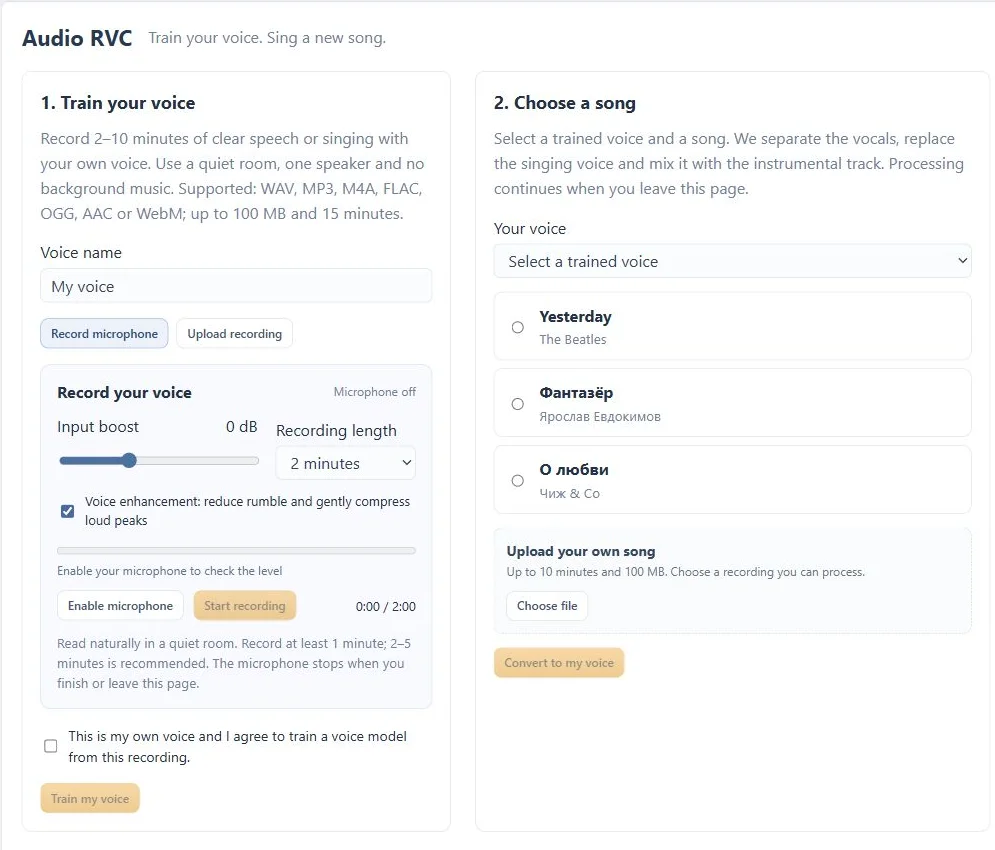
04 / Create with your voice

The song you know.
The voice that’s yours.

Record your own voice, prepare a voice model and try an available song in a new way. Or hold to talk and hear a converted phrase.

  1. Record your voice

    Use the microphone with gain controls, or upload a clear recording. Confirm that it is your own voice.

  2. Prepare and choose

    Wait for your voice model to be ready, then select an available song or upload one you have rights to use.

  3. Listen to every layer

    Play the converted track, separated vocals and instrumental. Try push-to-talk for short spoken phrases.

Try your own voice

Training and conversion take server processing time. Use your own voice and recordings you have permission to process.

Cyber Search Match / Audio RVC
Audio RVC workspace screenshot with example media
Actual product interface · example media
Record → train → choose a song → listen
Start with Free

Explore first.
Choose your plan.

You can get to know the tools without paying for Pro. Both plans currently have the same feature access.

Start exploring

Free

$0

All currently available tools, in one account.

  • Face search and similar faces
  • Video and audio analysis
  • Voice tools and media conversion
  • Task history and downloadable results
Create your free account
Optional subscription

Pro

$19.99 USD / month

Choose a monthly Pro subscription from your account.

  • Same feature access as Free today
  • Subscription status in your workspace
  • Monthly recurring billing
  • Manage or cancel from your account
Get started, then choose Pro

Processing, storage and upload limits apply to both plans. Pro currently adds no exclusive features. No payment is required to create a Free account.

A few things to know

Questions, answered.

Know what you are getting before you start.

What is Cyber Search Match?

A browser workspace for face search, video and audio analysis, voice conversion and media preparation. One account brings the tools and task history together.

What can I use for free?

Free and Pro currently have the same feature access. Processing, storage and upload limits apply. Pro is an optional $19.99 USD monthly subscription.

Do I need to install an application?

No desktop application is required. Upload or record in the browser; longer analysis and conversion tasks continue in the background.

Will I lose a task if I close the tab?

Submitted background tasks continue on the server. Sign back in to check the queue, review results and download available files.

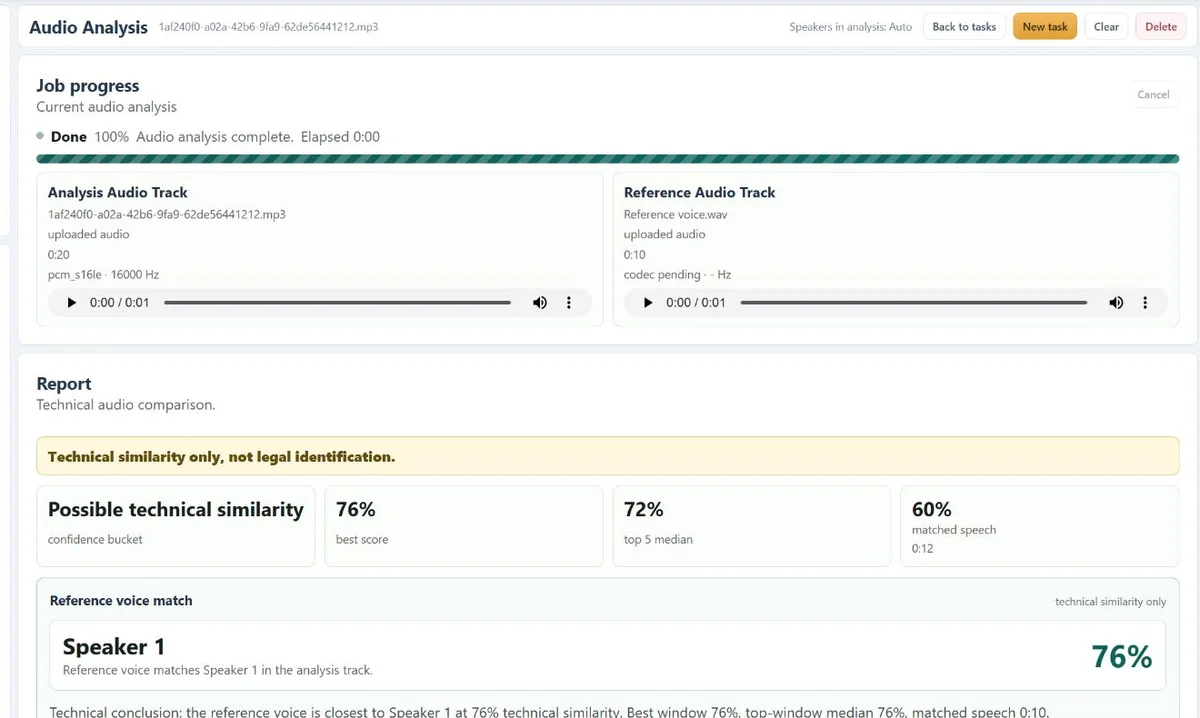
Are face and voice scores identity guarantees?

No. Scores show technical or visual similarity. Review the original sources and recording context before drawing conclusions.

Are my results automatically public?

No. Tasks and their files are accessed through your account. A face-search result becomes accessible by public link only when you choose to share it.

Your next discovery starts here

See what your media
can do for you.

Create your free account

No card required. Start with a Free account.