
Change video speed. Keep sound in step.
Speed up or slow down video from 0.25× to 4× with matching audio timing. Preview the pace and export the selected range as a new video.
Free account · Local uploads · Background processingChange video speed. From source to download.
- 01
Upload your source
Sign in and upload a local file. Inspection checks the streams and duration.
- 02
Adjust the operation
The relevant settings section opens after inspection. Review the starting values below.
- 03
Preview and review
Render a short processed preview where applicable, then save and review the full task.
- 04
Convert and download
Follow background processing and download the validated output.
Change video speed settings
Choose the operation here and it stays selected through registration or sign-in. Upload and inspect your source to open its settings. Starting values are editable; check them against your file before submitting.
Video + audio speed
A multiplier from 0.25× to 4×; 1.5× is selected on entry.
Trim range
Choose the source portion before applying speed.
Audio
Re-encode audio to keep its timing aligned with the video.
What to check before exporting
The combined speed control adjusts video timing and audio tempo while preserving audio pitch. It does not generate intermediate motion with AI. Slow motion is limited by the frames present in the original recording.
Choose a compatible output profile and review the source streams, selected range and final settings. Processing uses structured controls, and incompatible combinations are rejected before queueing. Download the requested result when final validation completes.
A real workspace. A result you can inspect.
This actual product screenshot shows source playback, range selection, an uploaded-audio area and encoding settings. It illustrates the shared converter; your operation opens its own relevant controls after inspection.
A processed preview creates a separate short task. It covers the first ten seconds of your range at up to 360p in a compatible format. Image and subtitle exports still need inspection of the requested final download.
Explore the Media Converter overview →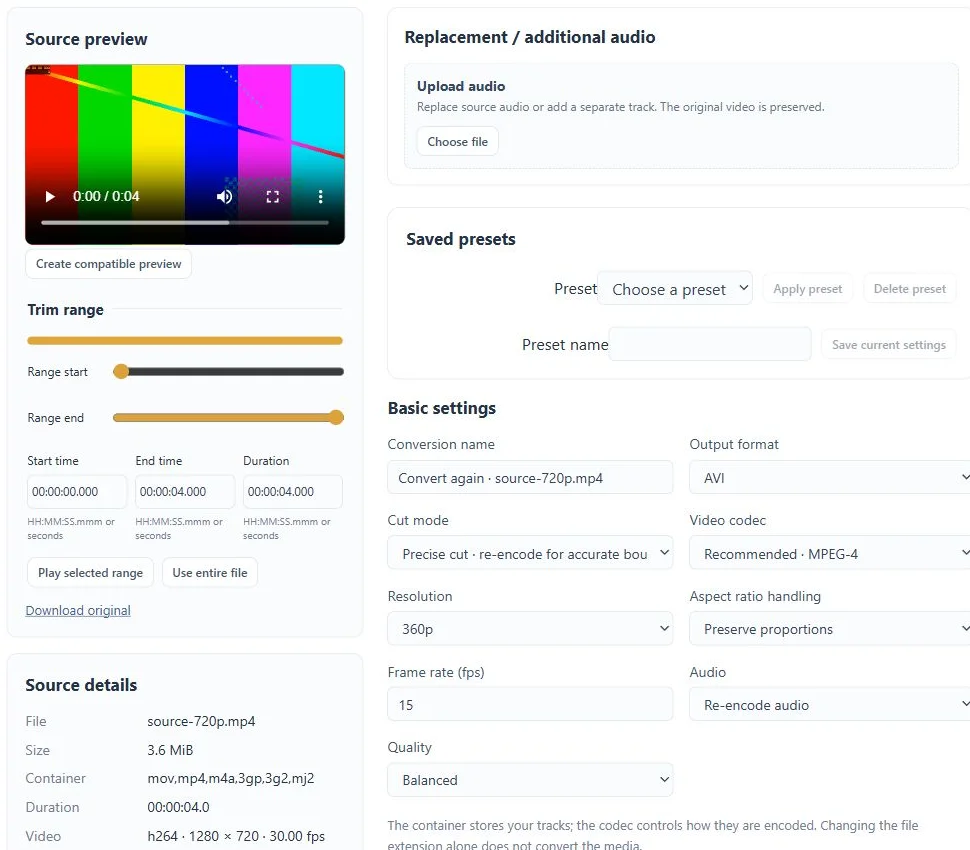
Questions about this workflow
How is this different from Audio Tempo?
This control changes video and audio together. Audio Tempo independently changes sound duration; in video output, that sound is trimmed or padded to fit the video.
Can I close the tab while processing?
Yes. Submitted conversion tasks run in the background. Return to your account to check progress and download results before the retention period ends.
What are the upload and storage limits?
Current source limits are 2 GiB and two hours per file. Files have a 72-hour retention period; task, collection and resource limits also apply. The workspace shows the applicable limits. Free and Pro currently share feature access.
Keep working with your media.
Audio tempo
Speed up or slow down an audio recording from 0.25× to 4× while preserving pitch.
Audio pitch
Change audio pitch by semitones while preserving tempo, then preview and export the selected range.
Video to GIF
Create an animated GIF from a selected video range. Set the dimensions and frame rate, apply optional image adjustments and download a silent animation.