
Fix Audio and Video Sync: Offset or Drift?
Diagnose a constant audio offset, progressive drift and playback problems before changing conversion settings.
Updated · Cyber Search MatchCompare sync near the start, middle and end. A constant error may be corrected with Audio offset; an error that grows over time needs a different investigation. A single offset cannot correct progressive drift.
Identify the shape of the error.
Use a visible event with a sharp sound, such as a clap or a clearly articulated word. Note how early or late the sound is at several points. Compare the original download with the result and, if possible, another player to distinguish a media problem from playback lag.
If sound is early by roughly the same amount throughout, a positive delay can help. If the gap grows, inspect timing, speed changes and source integrity instead of applying a larger fixed delay.
| Observed problem | First check |
|---|---|
| Same gap throughout | Audio offset and selected tracks |
| Gap increases over time | Source timing and independently changed tempo |
| Only one player is wrong | Playback support or device load |
| Only replacement audio is wrong | Alignment and duration policy |
Apply a small offset and test it.
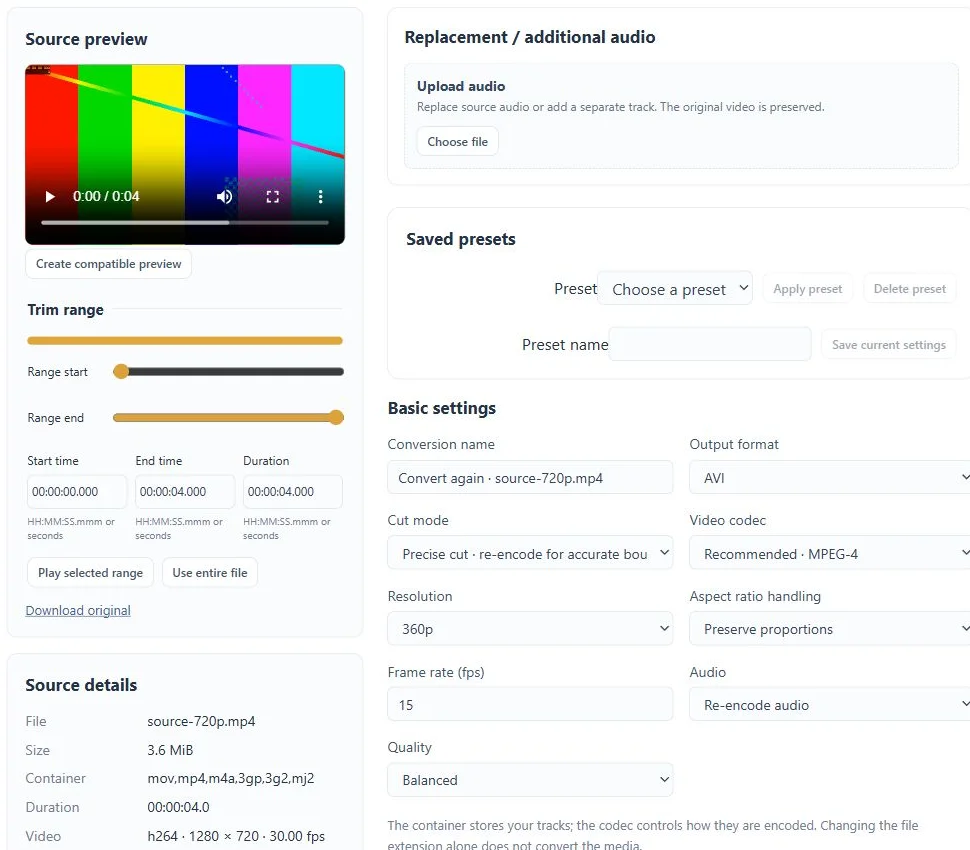
The Audio Delay entry opens Advanced settings with a 0.5-second starting offset. Replace that value with your measured adjustment. A positive offset inserts silence before every selected audio track; a negative offset skips the beginning of the sound.
For audio that is 0.3 seconds early, test +0.3 seconds. For audio that is 0.3 seconds late, test −0.3 seconds. This shared control affects all selected tracks, so select the intended track first. Review what a negative offset removes from the beginning.
Keep speed and duration choices in agreement.
Change Video Speed adjusts picture timing and audio tempo together. Independent Audio Tempo changes the sound duration; in video output, shorter sound is padded and longer sound is trimmed to fit the video. These are different operations.
With replacement audio, Trim cuts excess sound at the video end, Pad fills a shorter soundtrack with silence, and Shortest ends at the earliest selected track ending. Those policies control length; they do not discover a matching clap or automatically align dialogue.
Check more than the preview.
Render a processed preview to test the beginning, then inspect the full completed output near its middle and end. A ten-second preview cannot reveal drift across a long recording. Preserve source frame rate initially and avoid unrelated changes while diagnosing.
If a re-encoded viewing copy still drifts, retain the source and collect the visible error, source properties and timestamps of two clear events for support. Automatic repair of arbitrary corrupt timestamps is not promised.
Before you finish
- The offset direction was tested with a visible sound event.
- Beginning, middle and end are aligned in the full output.
- The chosen duration policy preserves the intended ending.
Questions about this workflow
Can Audio offset fix increasing drift?
No. It shifts timing by a fixed amount. A growing error needs investigation of source timing, speed and playback.