
Fast vs Precise Cut: Choose the Right Trim Mode
Compare stream-copy trimming with re-encoding, understand keyframe boundaries and choose the mode your task needs.
Updated · Cyber Search MatchUse Fast cut for compatible stream-copy trims when approximate video boundaries are acceptable. Use Precise cut when you need controlled boundaries, new codecs, resizing or processing effects.
What each mode changes.
Fast cut copies encoded streams into a compatible output container. It avoids another generation of encoding, but does not apply a new resolution, frame rate or image filter. A compatible container and codec combination is still required.
Precise cut decodes and re-encodes the selected range. It supports processing and closer control over trim boundaries, while taking more work and potentially introducing lossy encoding changes. The result is still limited to the source’s frame and audio-sample timing.
| Requirement | Choose |
|---|---|
| Quick compatible trim, approximate video boundary | Fast cut |
| Cut near an exact spoken or visual moment | Precise cut |
| Resize, crop, change speed or normalize sound | Precise cut |
| Retain encoded streams without another encoding pass | Fast cut, if compatible |
Why a fast cut can start at a different moment.
Many video codecs need preceding reference frames to decode a requested image. Stream-copy seeking therefore depends on keyframes and the file’s timestamps. Entering 00:10 does not make every compressed video independently decodable at exactly 00:10.
For a requested 00:10–00:25 clip, inspect both ends and the resulting duration. If the beginning includes unwanted material, repeat with Precise cut. Do not promise an exact 15-second result from every fast-copy combination.
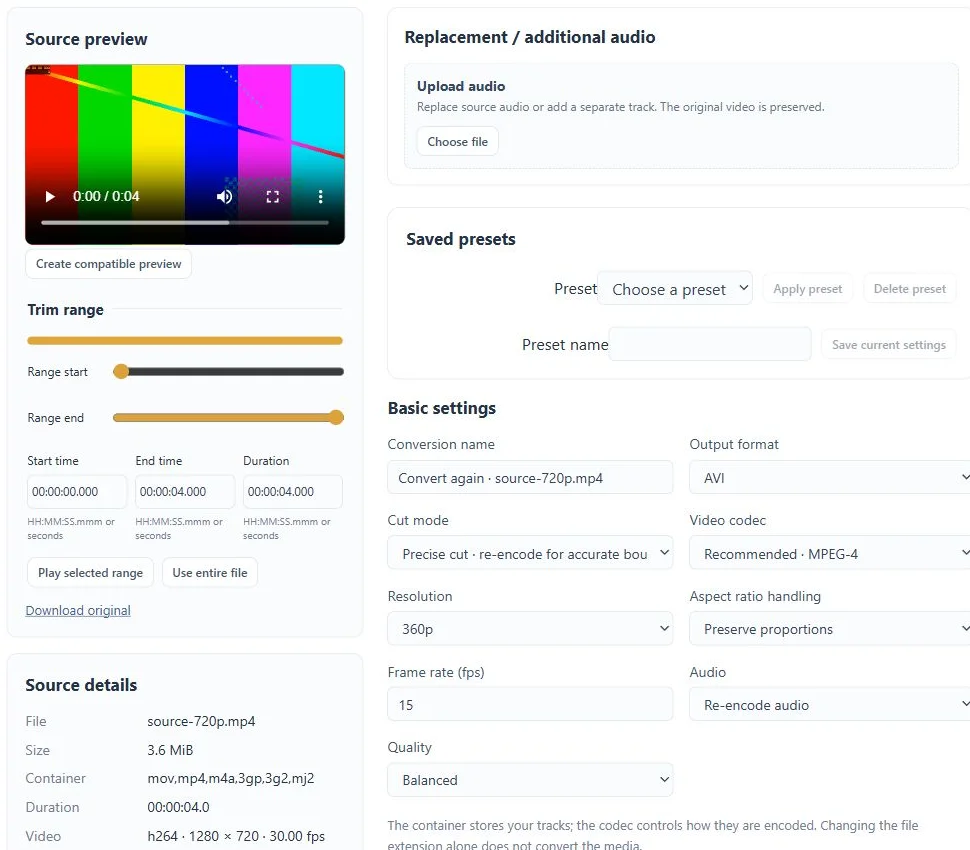
Keep the settings consistent with the mode.
The workspace validates fast-copy compatibility before queueing. If an effect or codec choice conflicts, remove that change or switch to Precise cut. Do not change an extension to force an incompatible stream into a container.
A split workflow also needs checking: boundaries define the requested portions, while the selected processing mode controls how the streams are written. Test a representative segment before splitting a long archive into many outputs.
Review the boundaries in the downloaded file.
Listen just before the first word and after the last one, check the first and last visual frames, then compare duration and sync. A source-player range is a selection aid; only the output confirms what the conversion wrote.
Keep your inspected source until you have approved the output. Use Convert again to revise a task within the file retention period instead of repeatedly uploading the original.
Before you finish
- The trim boundaries are acceptable in the completed file.
- Sound and picture remain aligned at the start and end.
- The chosen container supports the copied streams.
Questions about this workflow
Is Precise cut lossless?
Re-encoding can change the signal, especially with lossy codecs. Precise refers to the trim workflow, not a promise of lossless output.