Find faces
One photo. Numbered detections, individual person crops and a search button for each face.
Find faces in a photo Cyber Search MatchFace indexing and visual search.
Detect faces in a photo, compare each face with a chosen reference and continue to Face Search. Inspect person crops, visual similarity scores and the original image.
Free account · No card required · JPEG, PNG & WebP photos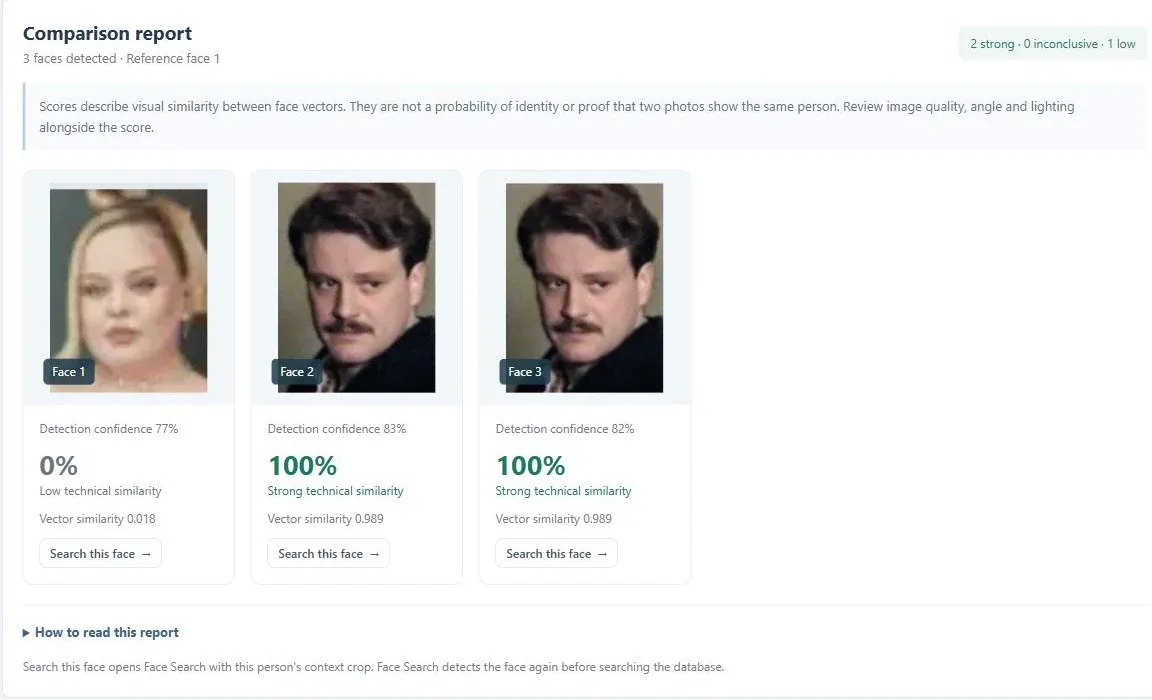
One photo. Numbered detections, individual person crops and a search button for each face.
Find faces in a photoTwo photos. Choose the reference person and inspect each comparison before deciding what to search.
Compare two photosFind faces in one photo, or compare a photo with a reference.
Upload a clear still image. Comparison needs a second photo.
Review numbered boxes, person crops and available comparison scores.
Send a selected person crop to Face Search to explore the indexed public sources.
Choose Find faces and upload a portrait or group photo. The result marks detected faces with numbered boxes and gives each detection its own person crop and detection-confidence value. Select a box to move to its card, or enlarge the photo and crops for a closer look.
Detection does not run a database search or establish who anyone is. You decide which person, if any, to explore next. Repeated photographs of the same person can produce several detections.
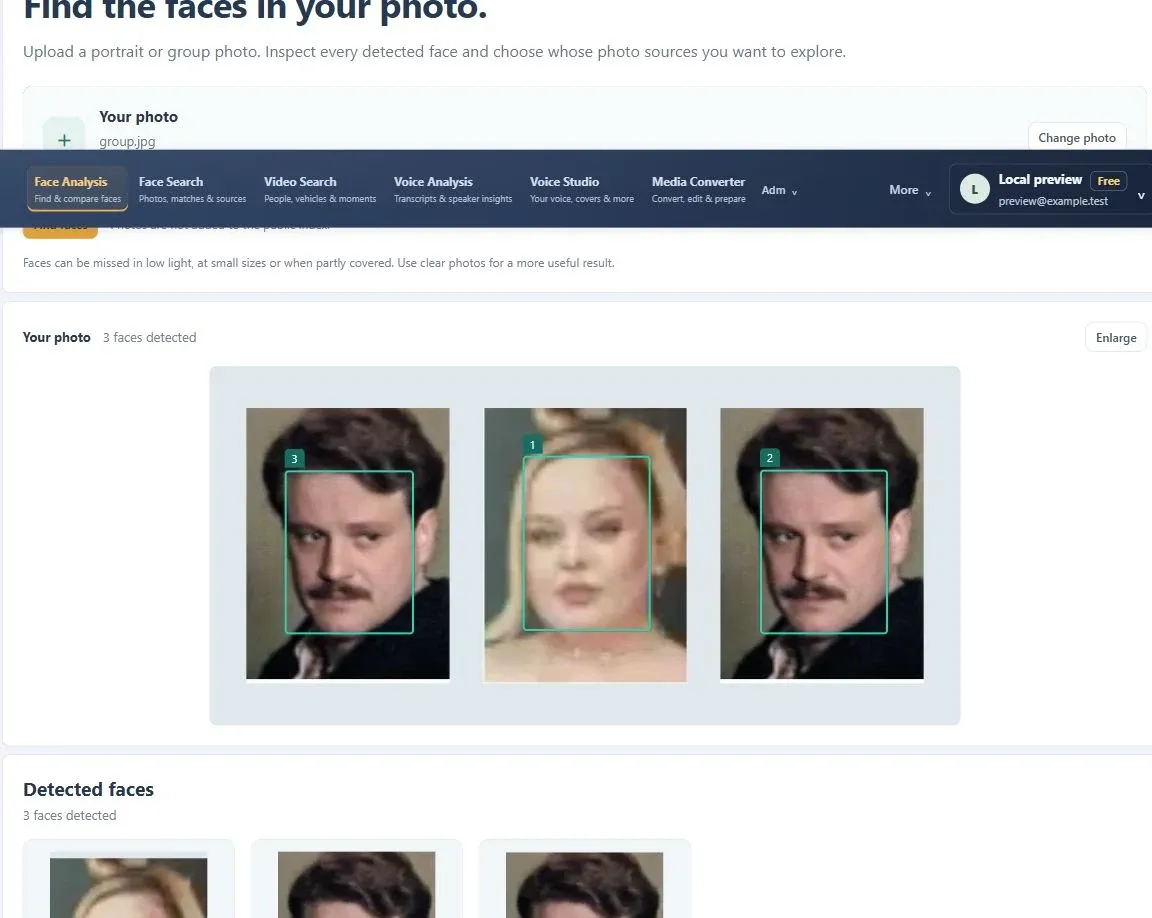
Use Compare faces when you already have a reference portrait. Upload Photo 1 with one or more faces and Photo 2 as the reference. If Photo 2 contains several people, choose the reference person explicitly and press Compare faces again.
The report compares every detected face in Photo 1 with that selected reference. It shows a result for each face and a summary of strong, inconclusive, low and unavailable comparisons. More than one face can score highly; this is not a one-to-one identity assignment.
A face that cannot be aligned stays in the report with its comparison unavailable. An unclear reference needs a clearer replacement. You can still send a detected person crop to Face Search.
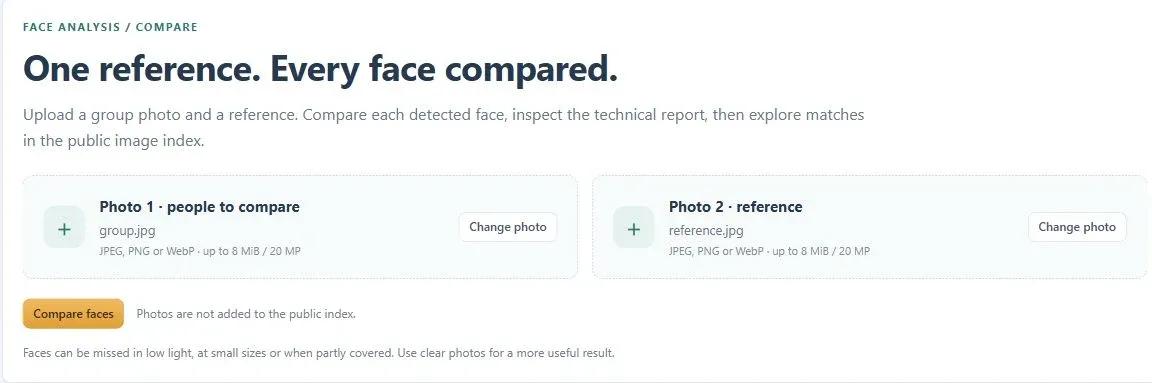
Switch between Cards and Compared in the comparison report. Cards keeps the individual face cards; Compared places a source face, percentage and selected reference inside each card, with three cards per row on wide screens. Both views use the same completed result. Find faces also provides a table of the first five detections beside the source photo, with More leading to the full list.
Detection confidence describes the detector’s confidence that it found a face. Vector similarity measures how close two numerical face representations are. The normalized 0–100% similarity score uses the same configured scale as Face Search.
A high percentage is not a probability that the photos show the same person. Different raw vector values can reach 100%. Pose, lighting, blur, face size and occlusion can change the result. Enlarge the images and review their context before drawing a conclusion.
| Report label | Normalized score | What it tells you |
|---|---|---|
| Strong technical similarity | 80% or higher | The face representations are close on this scale. Inspect the original photos. |
| Inconclusive similarity | Above 25%, below 80% | The comparison does not give a clear technical result. Try clearer photos or a more comparable angle. |
| Low technical similarity | 25% or lower | The representations are relatively far apart on this scale. Poor image quality can affect the result. |
| Could not compare | No score | The detected face could not be represented reliably enough for this comparison. |
Every detected face has a Search this face button, including faces in a comparison report. It opens Face Search with the selected person’s context crop. Face Search detects the face again, builds its search representation and searches the indexed public images.
This handoff uses the person crop rather than the entire group photo. Face Search expects exactly one detected face in its input. If a close or overlapping group leaves another face in the crop, use a clearer image or a more isolated portrait.
Review ranked matches, the separate Similar faces gallery, domains and recorded source links in Face Search. Coverage is limited to the index; an absent result does not establish that a photograph is absent from the internet. Returning to Face Analysis in the same signed-in session keeps the current form and report.
Use a still JPEG, PNG or WebP photo up to 8 MiB and 20 megapixels. These limits apply separately to each photo in a comparison. A free account is required; no desktop application or reference photo is needed for Find faces.
Use visible, sufficiently large human faces. Low light, strong angles, motion blur and partial coverage can cause missed detections or unreliable comparisons. Finding every person in every image is not guaranteed.
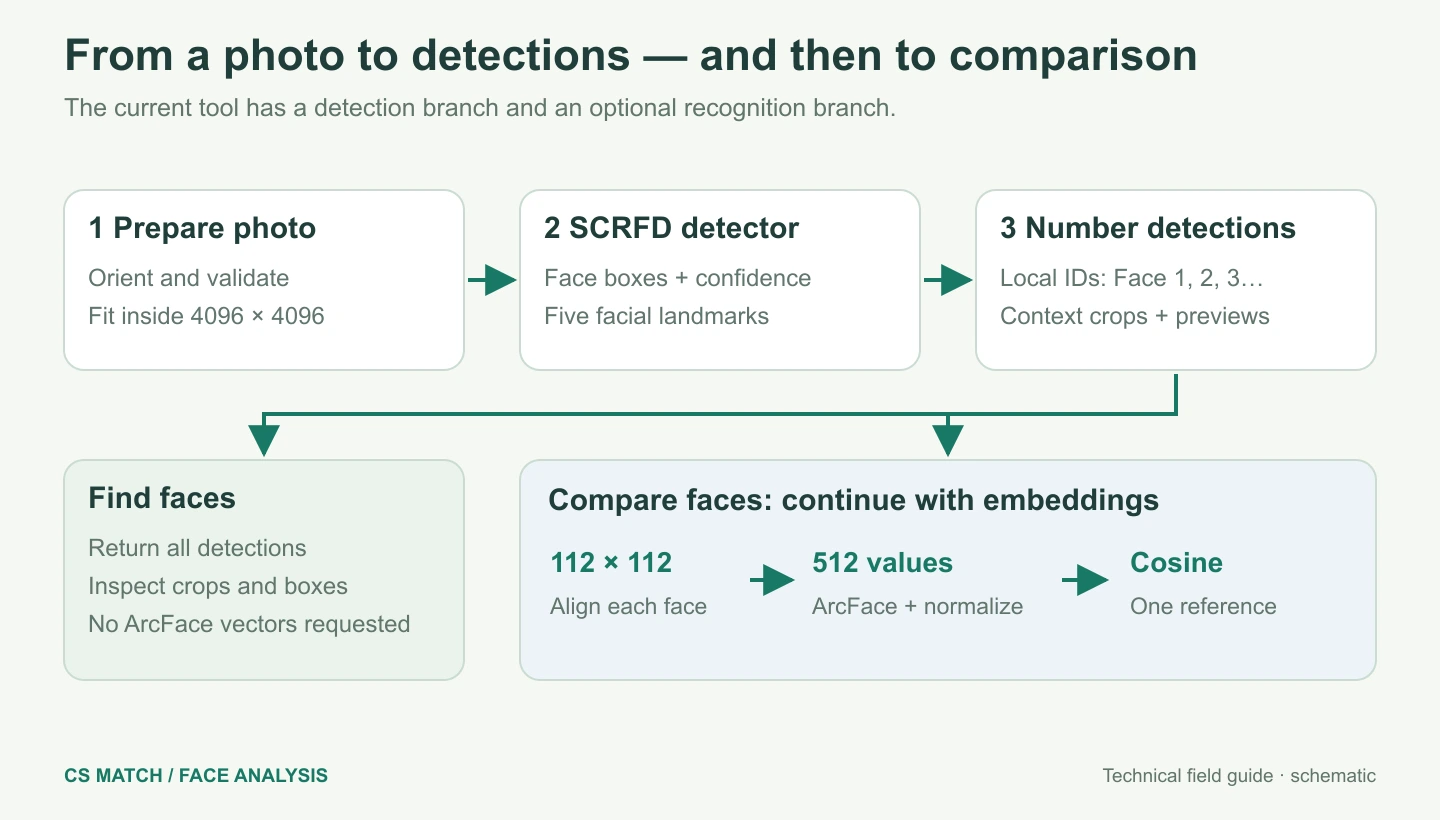
Large images are reduced to at most 4096 pixels on the longest side for analysis. If more than 200 faces are detected, the tool asks you to split the image into smaller groups instead of silently omitting results.
The current pipeline uses a SCRFD detector to find face boxes and landmarks, then a pretrained ArcFace recognition checkpoint to represent aligned faces. Compare aligns each face to a 112 × 112 RGB patch and calculates a normalized 512-value embedding. Find faces requests detections without running that embedding stage.
Each source embedding is compared with the selected reference by cosine similarity. The inspected display endpoints are 0.45 and 0.72; a clipped linear mapping turns the raw value into the displayed percentage. This scale is not an identity probability. The technical guides explain the exact formula, training versus inference, error modes and practical limits.
Face Analysis does not publish or add your uploaded photos, detected crops or comparison vectors to the public face index. Detection and comparison results remain in the current browser session; keep the page open while analysis runs and save anything you need before reloading or signing out.
Use photos you are entitled to process. Starting a database search is a separate action. In Face Search, a saved result becomes accessible by public link only when you choose to share it.
Face Analysis detects faces in your uploaded photo and can compare them with an uploaded reference. Face Search looks for matches in the indexed public web images. Search this face connects the two workflows.
No. Find faces takes one photo. Compare faces takes Photo 1 and a separate reference photo.
The interface shows the detected reference faces and asks you to choose one. Every detected face in Photo 1 is then compared with that selected person.
No. It is a normalized technical-similarity score, not an identity probability. Several raw vector values can reach 100%; inspect the photos and their context.
Yes. Use Search this face on a detection or comparison card. Face Search receives the selected person crop and detects the face again before searching.
Not in every image. Small, blurred, covered or poorly lit faces can be missed. A repeated portrait can count as more than one detection.
Face Analysis does not add uploads to the public index. The current form and report stay available while moving between workspace sections in the same session; this is not a saved background task or permanent report history. Reloading or signing out clears the analysis.
Follow a photo through CS Match: image preparation, SCRFD detection, five facial landmarks, person crops and 112 × 112 alignment for comparison.
Understand our 512-value face embeddings, RGB preprocessing, L2 normalization, angular similarity and the difference between model training and inference.
Follow our exact comparison request: reference selection, two inference passes, cosine similarity, the 0.45–0.72 display scale and report decisions.
Diagnose false matches, missed matches and unavailable comparisons. Learn what image quality changes, how to test results and why a score is not identity proof.
Understand Similarity, Vector similarity and Min similarity in CS Match. Learn why 100% is not proof of identity and why a lower threshold may not add results.
Prepare a clear, single-face image for CS Match. Learn how framing, pose, lighting and cropping affect detection and search results.
Troubleshoot face detection in CS Match: check framing, rotation, lighting and multiple faces before changing search settings.
No card required. Start with a Free account.