
From a moment in a video to a face you can inspect.
Find face observations inside detected person crops, review their source times and open a selected crop in a separate Face Search.
Free account · No card required · Uploaded recordings, processed in the background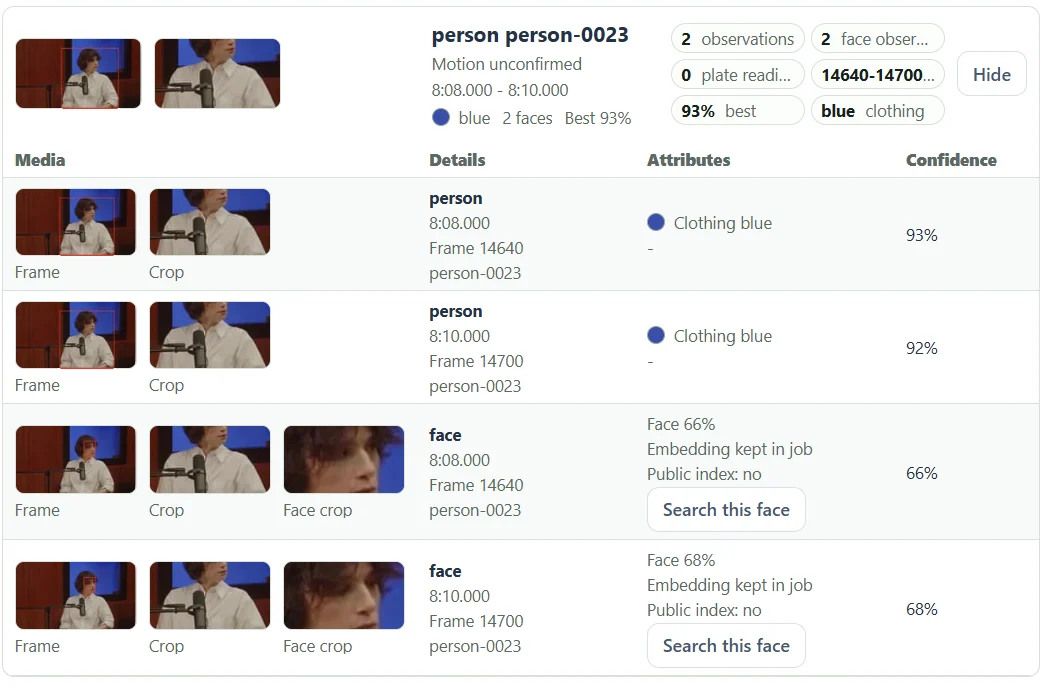
From the source to the useful frame.
- 01
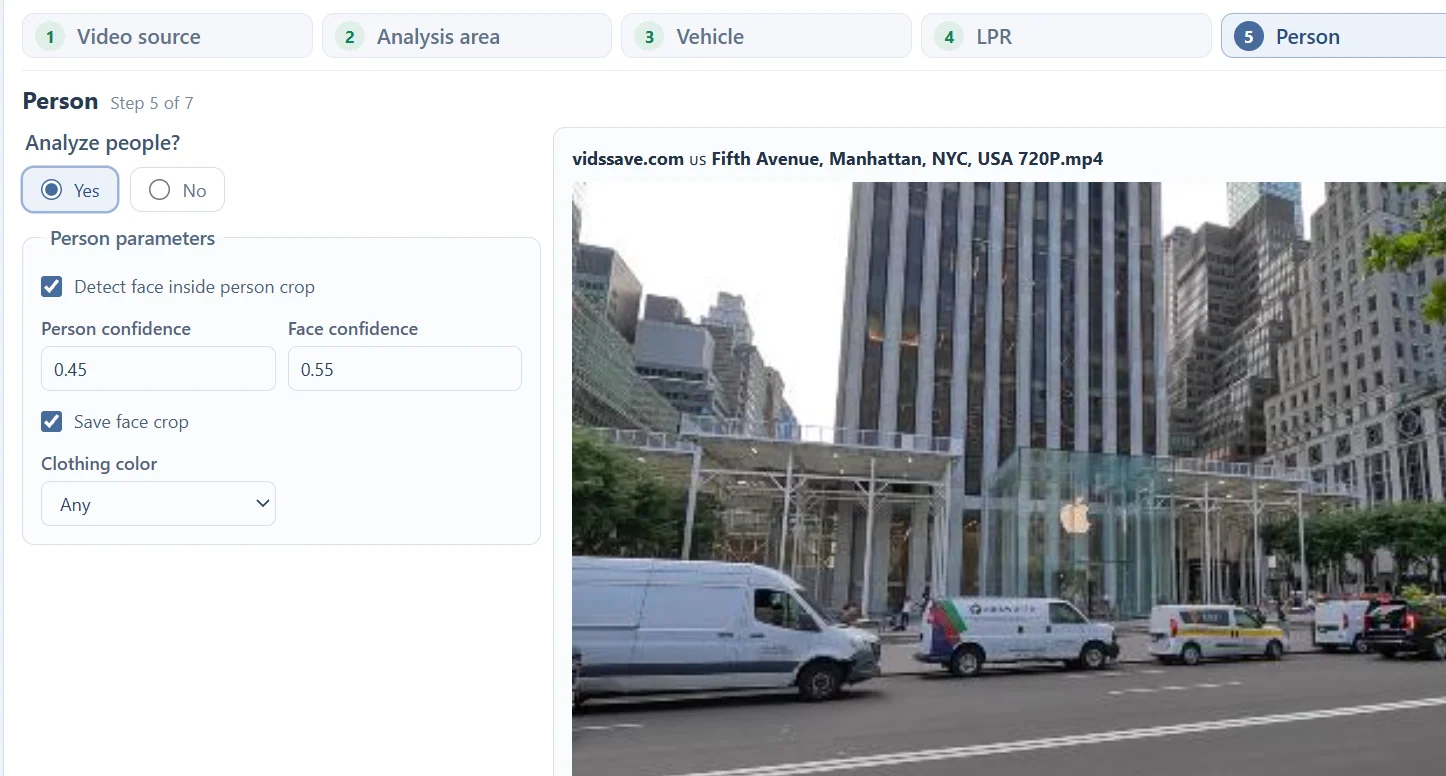
Enable Person
Face observations are collected inside person crops.
- 02
Enable face detection
Choose face confidence and save face crops.
- 03
Run the analysis
Wait for observations from the selected source range.
- 04
Inspect a clear crop
Compare angle, sharpness and the full source frame.
- 05
Search if useful
Select Search this face to open a separate Face Search.
A face observation records a visible moment.
The interview detail view shows face crops at 8:08 and 8:10 under person-0023. Face 66% and Face 68% are detection confidence values for these observations. They are not similarity scores between people.
A person may have many observations and few usable face crops. Side views, blur and small faces can prevent face detection even when the person is visible. Analyze a sharper passage or use more frequent sampling to collect additional opportunities.
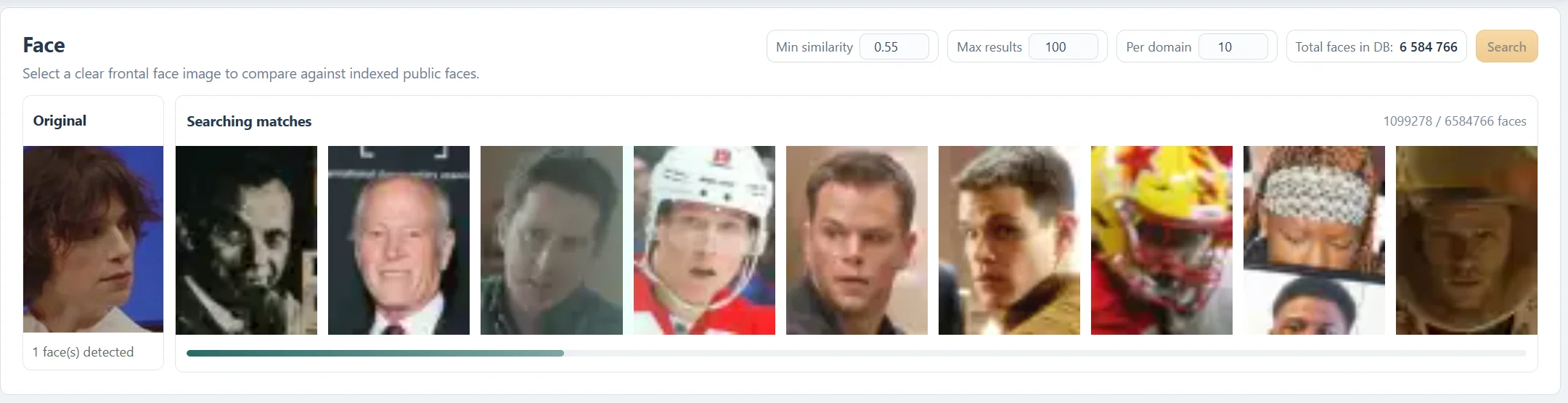
Search this face starts a separate comparison.
Choose a clear face crop and select Search this face. The Face workspace compares it with indexed public faces. The example search screenshot is captured while matching is still running; the visible candidates are not confirmed identities.
Face Search uses Vector similarity and a rescaled Similarity percentage. Those scores differ from the face detection confidence in the video report. A search result requires checking the source image and publication context.
A small or angled video crop may be a weak search input. If a better still image is available, use it rather than relying on a blurred crop simply because the person detection confidence is high.
A video observation is not automatically a public-index entry.
Public index: no in the example indicates that the face observation has not been added to the public face index. Embedding kept in job describes data retained for the task. Starting a comparison and publishing an index entry are different actions.
Keep account access and any chosen sharing separate from the analysis itself. Consult the privacy and deletion pages for handling requests about your task data or indexed public images.
Questions about this workflow
Does video analysis identify everyone in the footage?
It detects visible people and optional face observations. It does not assign verified identities. A separate face search is a comparison against the current public index.
Can I close the tab while analysis runs?
After the upload and submission have finished, processing runs in the background. Return to the Video task list to check the job and available results. Keep the tab open while the file is still being uploaded.
What are the current source limits?
The current Video Analysis interface accepts files up to 2 GiB and two hours. Processing and storage limits also apply. Analyze a short representative range first when choosing settings.
A useful frame starts with a focused task.
Video Analysis
Analyze an uploaded video without coding. Review vehicle and person tracks, license plate readings, face crops and the timestamps behind each observation.
Object Tracking
Track supported people and vehicles in a submitted video. Compare grouped observations, crops and timestamps without writing detection or tracking code.
Vehicle Tracking
Find vehicle appearances in your video, filter supported types and colors, and review grouped crops and timestamps for the passage you need.
Person Tracking
Locate people in an uploaded video and inspect person tracks, clothing colors, source frames and optional face observations in one report.
License Plate Reading
Extract visible license plate text from video frames. Compare OCR readings, detection scores, vehicle crops and timestamps before relying on a result.
YouTube Video Downloader
Prepare an available public YouTube video, choose a returned resolution and download the file or use it for Video Analysis. Source restrictions can affect availability.
Read the recording. Understand the report.
Choose a Video Analysis Area of Interest
Use the entire frame, a rectangle or a polygon to focus a video task. Learn how fixed boundaries affect moving subjects and camera movement.
Choose a Video Frame Sampling Interval
Balance coverage and processing with source-frame intervals and optional adaptive sampling. See why short events need closer sampling.
Video Tracks vs Observations: Read the Results
Understand track groups, individual detections, plate readings and face observations without treating track totals as unique people or vehicle counts.
Understand Video Analysis Timestamps and Frame Numbers
Read source times, frame indices and track ranges. Learn how trimming, sampling and variable frame rates affect the times shown in a video report.
Video Analysis File Formats and Upload Requirements
Check size, duration, containers, codecs and browser previews before submitting a video. Keep the original when preparing a compatible copy.
Troubleshoot Video Analysis: Uploads, Missing Results and Tracks
Work through source errors, empty reports, missing plates, fragmented tracks and processing delays with focused checks before rerunning a video.
Object Tracking vs Detection in Video
Learn the difference between locating objects in a frame and linking observations across frames, with practical examples from the Video Analysis report.
See what your media
can do for you.
Create your free accountNo card required. Start with a Free account.