
Read the plate. Check the pixels.
Extract visible license plate text from video frames. Compare OCR readings, detection scores, vehicle crops and timestamps before relying on a result.
Free account · No card required · Uploaded recordings, processed in the background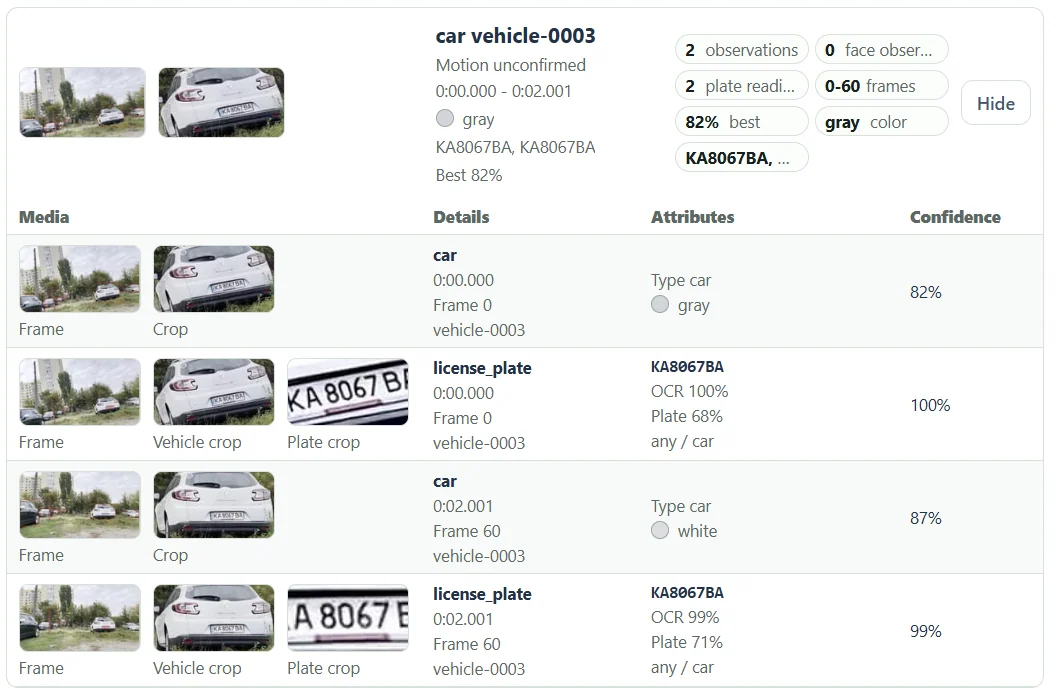
From the source to the useful frame.
- 01
Choose a clear passage
Prefer close, sharp views of the plate.
- 02
Enable LPR
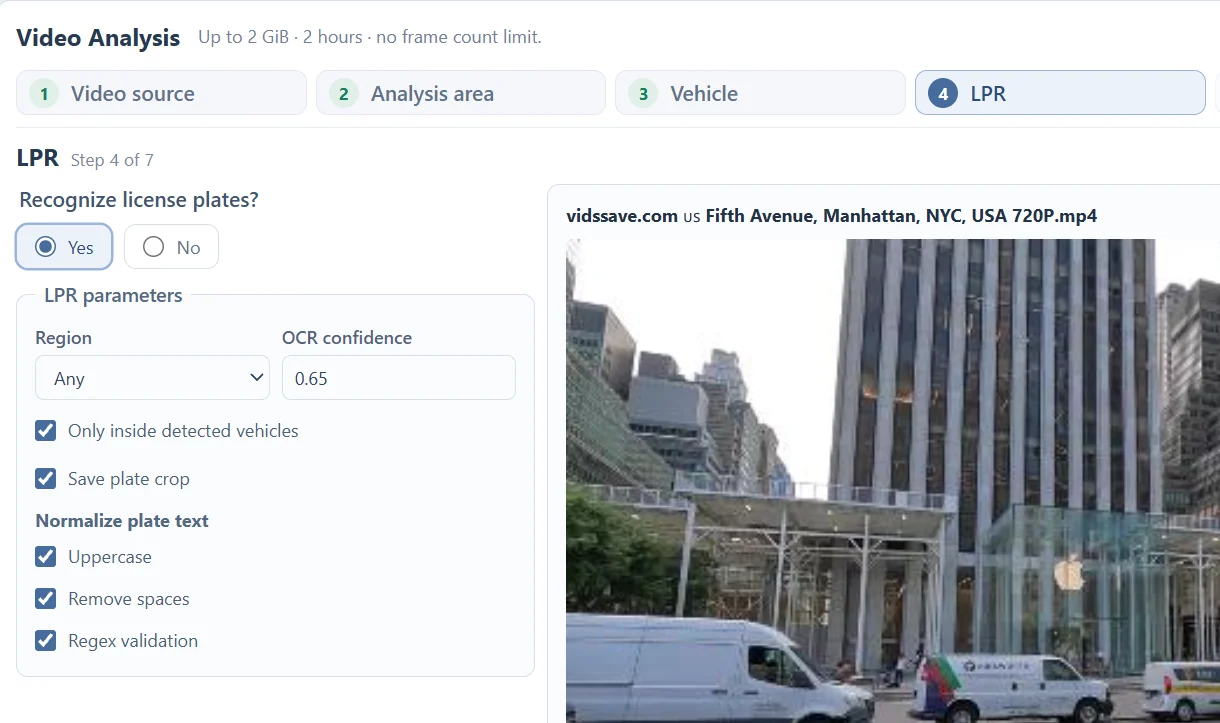
Select the available region and OCR threshold.
- 03
Choose the search area
Vehicle-only reading also requires Vehicle analysis.
- 04
Save the evidence
Keep plate crops for checking the recognized characters.
- 05
Compare readings
Review repeated observations against the original crop.
Choose what to read and what to retain.
The current region choices are Any, UA, EU and US. These configure the reading and validation workflow; they do not promise support for every plate design in those regions. Start with the setting that fits the footage and review rejected or uncertain reads.
Only inside detected vehicles restricts plate reading to detected vehicle regions and requires Vehicle analysis. A missed vehicle can therefore also mean a missed plate. Turn on Save plate crop when you need to inspect the characters.
Uppercase and Remove spaces normalize text. Regex validation checks formatting. None of these settings can restore a character hidden by blur, glare, angle or insufficient resolution.
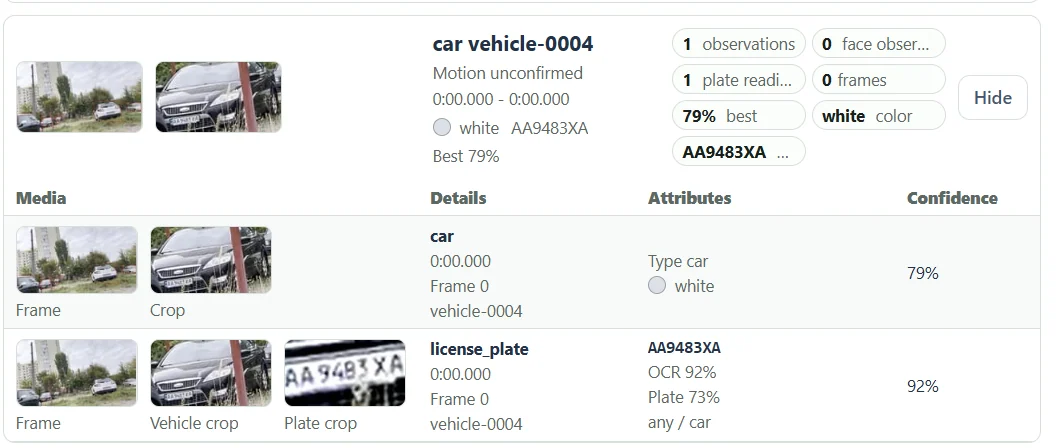
OCR confidence and plate confidence answer different questions.
In the single-observation example, OCR is 92% and Plate is 73%. The former concerns the text reading; the latter concerns the plate detection. Neither is a verified probability that a vehicle has been identified correctly.
The second example records KA8067BA at two times, with OCR scores of 100% and 99%. Even a displayed 100% requires visual review. Compare the character shapes, complete plate crop and vehicle context, especially when a decision depends on one letter or digit.
Use repeated views as evidence, not extra vehicles.
Two readings under one track can help you compare alternate angles and moments. They remain two observations of an associated object, not an independent guarantee of the text and not a count of two vehicles.
Use plate text filtering to find existing readings, then inspect the original crop and its timestamp. If no readable plate is found, review closer-sampled frames from a sharper passage. The system cannot infer a reliable number from an unreadable source.
Questions about this workflow
Can it recover a blurred or hidden number?
No setting can guarantee reconstruction of characters that the recording does not resolve. Use the sharpest original view and manually check important readings.
Can I close the tab while analysis runs?
After the upload and submission have finished, processing runs in the background. Return to the Video task list to check the job and available results. Keep the tab open while the file is still being uploaded.
What are the current source limits?
The current Video Analysis interface accepts files up to 2 GiB and two hours. Processing and storage limits also apply. Analyze a short representative range first when choosing settings.
A useful frame starts with a focused task.
Video Analysis
Analyze an uploaded video without coding. Review vehicle and person tracks, license plate readings, face crops and the timestamps behind each observation.
Object Tracking
Track supported people and vehicles in a submitted video. Compare grouped observations, crops and timestamps without writing detection or tracking code.
Vehicle Tracking
Find vehicle appearances in your video, filter supported types and colors, and review grouped crops and timestamps for the passage you need.
Person Tracking
Locate people in an uploaded video and inspect person tracks, clothing colors, source frames and optional face observations in one report.
Faces in Video
Find face observations inside detected person crops, review their source times and open a selected crop in a separate Face Search.
YouTube Video Downloader
Prepare an available public YouTube video, choose a returned resolution and download the file or use it for Video Analysis. Source restrictions can affect availability.
Read the recording. Understand the report.
Choose a Video Analysis Area of Interest
Use the entire frame, a rectangle or a polygon to focus a video task. Learn how fixed boundaries affect moving subjects and camera movement.
Choose a Video Frame Sampling Interval
Balance coverage and processing with source-frame intervals and optional adaptive sampling. See why short events need closer sampling.
Video Tracks vs Observations: Read the Results
Understand track groups, individual detections, plate readings and face observations without treating track totals as unique people or vehicle counts.
Understand Video Analysis Timestamps and Frame Numbers
Read source times, frame indices and track ranges. Learn how trimming, sampling and variable frame rates affect the times shown in a video report.
Video Analysis File Formats and Upload Requirements
Check size, duration, containers, codecs and browser previews before submitting a video. Keep the original when preparing a compatible copy.
Troubleshoot Video Analysis: Uploads, Missing Results and Tracks
Work through source errors, empty reports, missing plates, fragmented tracks and processing delays with focused checks before rerunning a video.
Object Tracking vs Detection in Video
Learn the difference between locating objects in a frame and linking observations across frames, with practical examples from the Video Analysis report.
See what your media
can do for you.
Create your free accountNo card required. Start with a Free account.