
Understand Video Analysis Timestamps and Frame Numbers
Read source times, frame indices and track ranges. Learn how trimming, sampling and variable frame rates affect the times shown in a video report.
Updated · Cyber Search MatchReport times refer to positions in the source recording, not the elapsed time spent processing. They are derived from source frame indices and the detected frame rate. A track range spans recorded observations; it does not prove continuous visibility between them.
Distinguish source time from processing time.
A row labeled 8:08.000 identifies a moment about eight minutes and eight seconds into the source. Elapsed 0:33 in Job progress measures how long the processing job has been running. These clocks answer different questions.
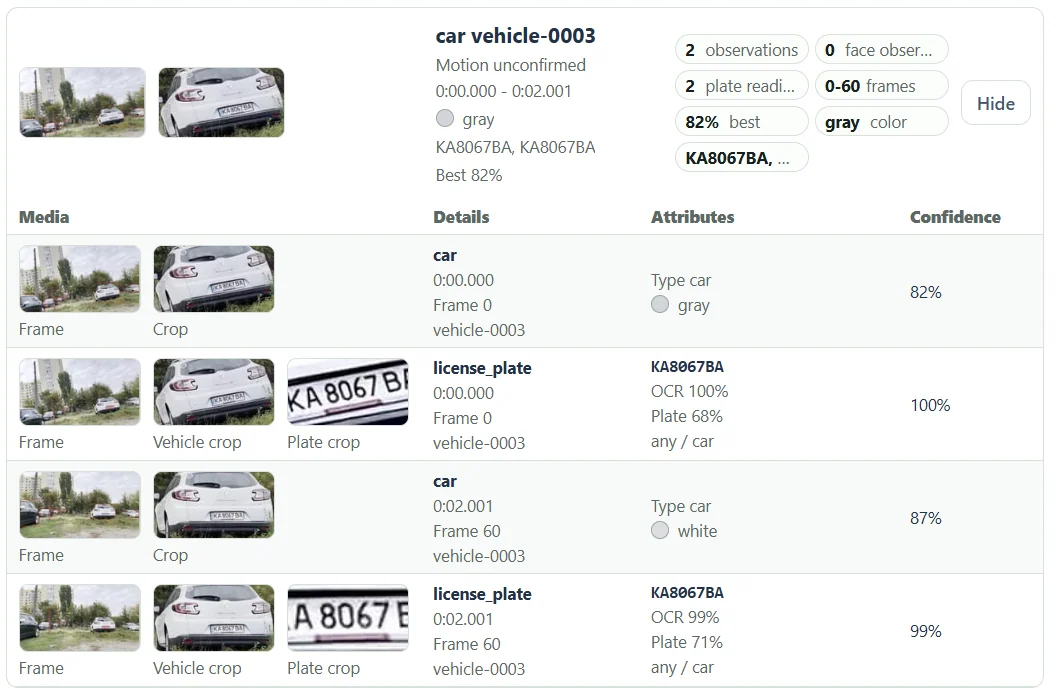
Frame numbers identify source frames. For a constant 30 fps source, frame 14640 is at 488 seconds, or 8:08. The report rounds displayed times; a detected rate close to 29.97 fps can produce values such as 0:02.001 at frame 60.
The report derives timestamps using frame index divided by the detected fps. For variable-frame-rate files, treat these as navigation estimates and confirm important boundaries against actual playback.
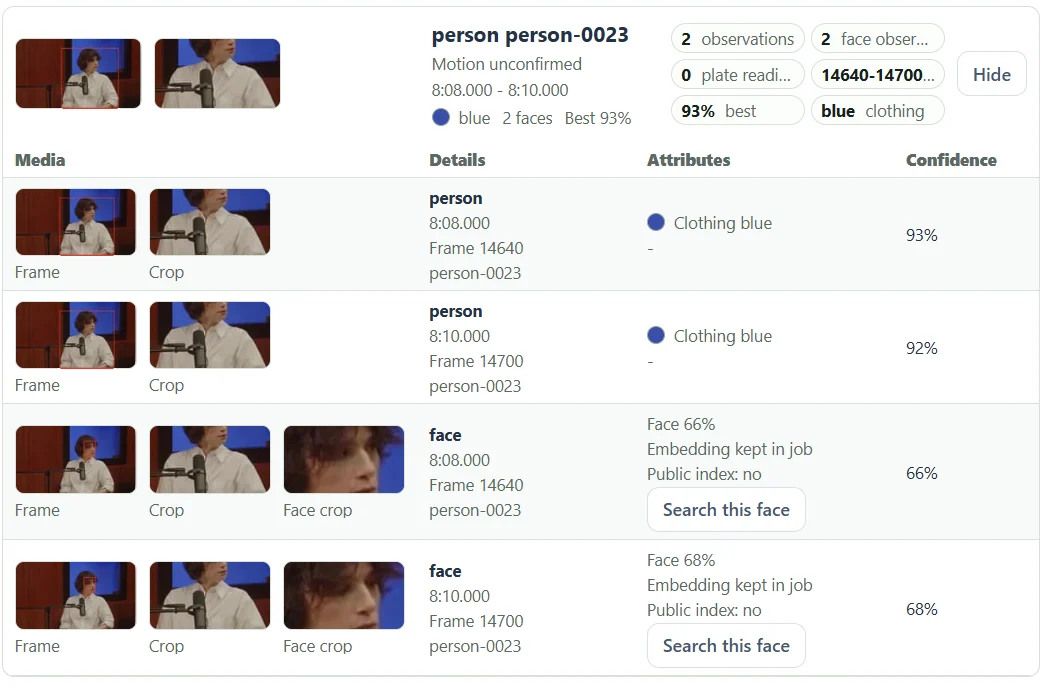
A selected range preserves source positions.
When you analyze a trimmed interval, frame indices and report times remain relative to the original source. Selecting a range beginning at ten minutes does not rename that source position as zero.
Baseline samples align to the selected frame interval. The first analyzed frame can be slightly after the requested start, and the final observation can be before the selected end. Those differences do not by themselves indicate that part of the upload is missing.
A short compatible browser preview may cover only a portion of the file. Its playback offset is a preview convenience; analysis uses the original recording and the selected source range.
Read a track range as observed evidence.
A track from 0:00.000 to 0:02.001 says its associated observations span those source times. Expand the track to see how many observations support the range and how far apart they are.
A single observation can show identical start and end times. It records one sampled moment, rather than an event with a measured zero-second physical duration. More frequent sampling can provide additional points.
For precise review, keep the original file, record the source time and frame reference, and inspect nearby frames in a player. Avoid treating the timestamp alone as proof of the exact arrival or departure time.
Questions about this workflow
Are these exact camera-clock times?
No. They are positions within the source file, not verified wall-clock capture times or timezone-aware camera metadata.
Why does a trimmed task still show a large timestamp?
The report preserves the position in the original recording. This lets you locate the observation in the source file.
Continue with the next useful step
Choose a Video Frame Sampling Interval
Balance coverage and processing with source-frame intervals and optional adaptive sampling. See why short events need closer sampling.
Video Tracks vs Observations: Read the Results
Understand track groups, individual detections, plate readings and face observations without treating track totals as unique people or vehicle counts.