
Hold. Speak. Release. Hear it back.
Record a short message and hear a converted reply in your trained voice. Each message is processed after release, with playback and MP3 download.
Free account · Your own voice · Background processingSame phrase. A different sound.
Synthetic speech followed by a simple pitch effect. These illustrative samples are not outputs from a trained CS Match model.
Illustrative audio · No real person’s voice model used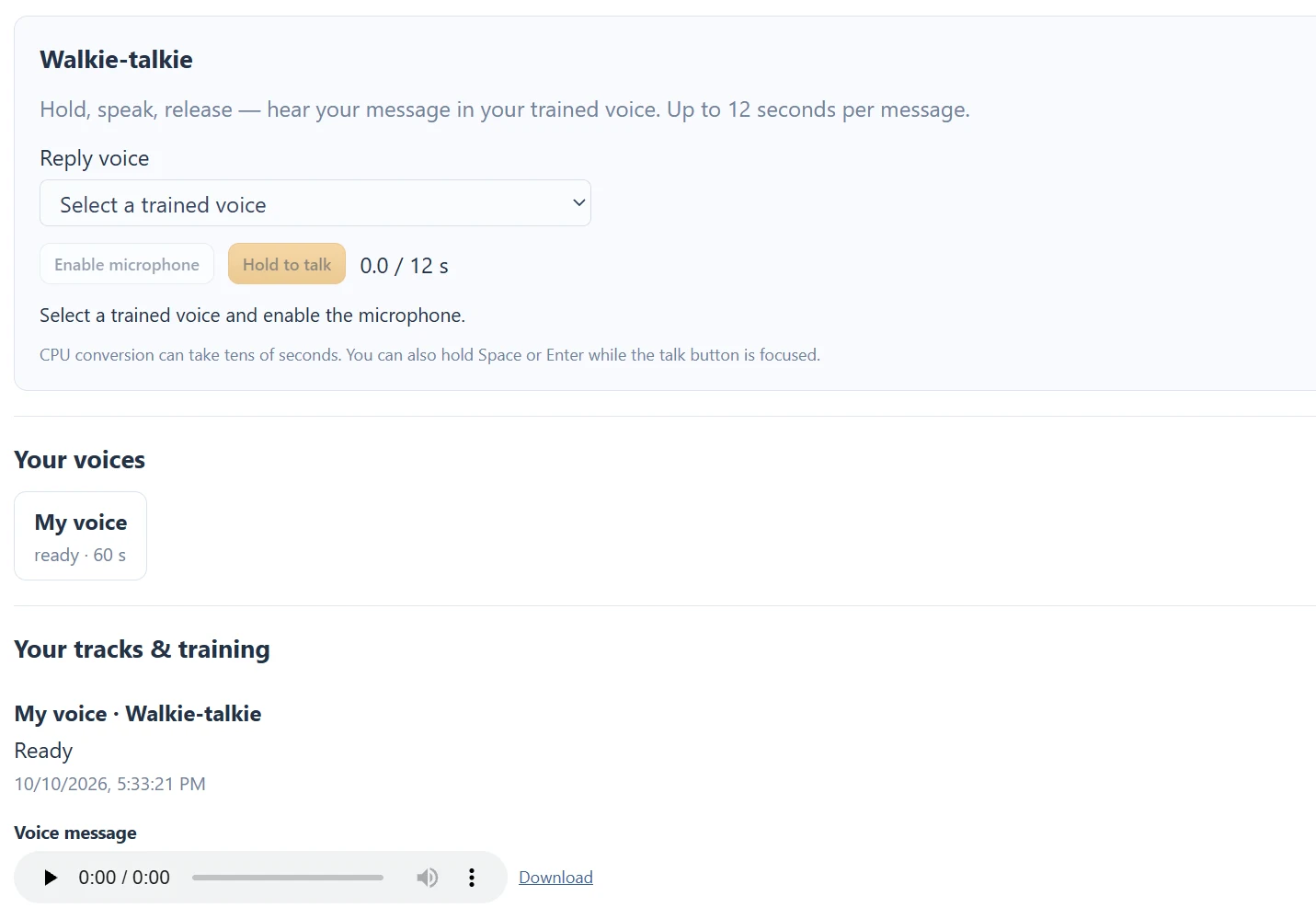
Press → speak → release → wait → listen.
- 01
Choose a ready voice
Select one of your trained models and enable the microphone.
- 02
Hold and speak
Hold the talk button for 0.5–12 seconds.
- 03
Release and wait
The recorded message is uploaded and converted in the background.
- 04
Hear your reply
Play the converted message and download the MP3 if you want to keep it.
A ready voice before the first message.
Train your own voice model first. Select it in Reply voice, enable the microphone and allow browser access. The talk button is available only when a ready model and the message-processing service are available.
Hold the talk button while speaking, then release it to submit the recording. You can also hold Space or Enter while the button is focused. A click shorter than half a second is rejected; recording stops at the 12-second cap.
The pause is part of the workflow.
After release, the recorded clip uploads and a background job converts the sound. CPU conversion can take tens of seconds, and queue load can add waiting time. Wait for the previous message to finish before recording another.
The reply attempts playback when ready, subject to browser playback rules. If it does not start automatically, press Play in the result player. Download reply saves the converted MP3. Your tracks & training also lists the completed voice message.
Short replies, with a clear boundary.
Use Walkie-talkie to try a phrase, compare your delivery or create a short voice message. It does not install a virtual audio device, stream into Discord or change the microphone continuously during a call. There is no direct message-sending integration.
Keep the tab active while recording. Leaving the page or hiding the recording tab can cancel capture. Once a job is successfully submitted, processing continues; return to the task history for the result.
Questions about this workflow
Do I need a voice model first?
Song conversion and walkie-talkie messages require one of your ready voice models. You can record and preview a sample before training. The current training form asks you to confirm that it is your own voice.
Can I leave while a task runs?
Keep the page open until recording, upload and submission finish. Submitted training and conversion jobs continue in the background; return to Your tracks & training to check progress.
Is this a continuous live voice filter?
No. Walkie-talkie records a short message and converts it after release. CPU processing can take tens of seconds. It does not provide a virtual microphone or a continuous Discord voice feed.
Choose your next voice task.
Voice Changer
Train your own voice model, convert a song’s vocals or send a short recorded message through it. Record, review and create in one browser workspace.
AI Song Covers
Convert a song’s singing with your own trained voice model. Review the final mix alongside separated vocals and instrumental audio.
Own Voice Model
Record or upload your own speech or singing, submit training and use the ready model for song covers and short voice messages.
Microphone Voice Recorder
Record your own voice in the browser, check microphone level and compare original with boosted or enhanced audio before downloading WAV or training.
Better input. A more useful result.
How to Record a Useful Voice Model Sample
Prepare a clean own-voice recording: duration, room, microphone distance, speech and singing before training.
Microphone Gain: Boost Your Voice Without Clipping
Use the input meter, −12 to +24 dB boost and original/processed playback to prepare a clean voice recording.
Separated Vocals and Instrumental: Read the Song Outputs
Understand the final mix, original vocal stem and instrumental stem produced by a completed song conversion.
Song Conversion Levels: Recording, Playback and Mix
Distinguish microphone gain, player volume and the fixed vocal/instrumental mix used for song conversion.
Voice Training Queued: Progress, Waiting and Failures
Understand queued training, background processing, ready models and what to do when a voice task fails.
Voice Conversion vs Text-to-Speech
Choose between changing recorded sound, generating speech from text and transcribing a recording.
Voice Tools Permissions: Microphone, Samples and Songs
Understand microphone access, the own-voice training confirmation, song permissions and account-only outputs.
See what your media
can do for you.
Create your free accountNo card required. Start with a Free account.