
Voice Tools Permissions: Microphone, Samples and Songs
Understand microphone access, the own-voice training confirmation, song permissions and account-only outputs.
Updated · Cyber Search MatchThe current training form requires your own voice and explicit confirmation. Microphone permission enables recording; it does not give rights to another person’s voice or to a song.
The training confirmation has a specific scope.
Train from your own speech or singing and check the own-voice confirmation only when it is true. The current form is not a third-party voice authorization workflow, even if a recording was shared with you. A model name does not establish consent or identity.
Keep recordings free of unintended participants. Review the selected sample before submission and avoid including private conversations, addresses or other information you do not need for training.
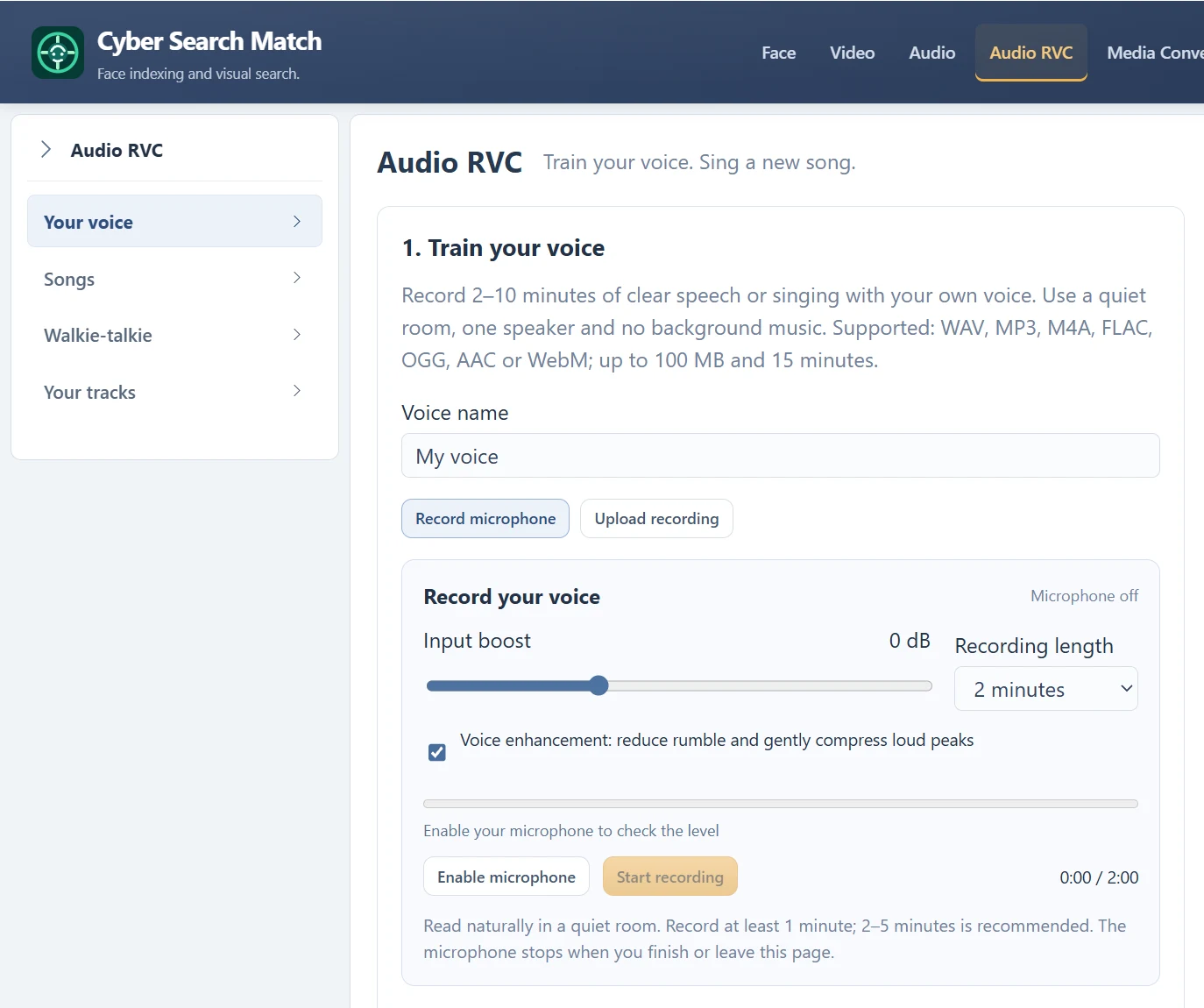
Microphone access is a browser setting.
The recorder asks for access after Enable microphone. Grant access only for the input device you intend to use, and turn the microphone off when finished. Recording stops when you finish or leave the voice page; incomplete browser recordings should not be assumed saved on the server.
If access was denied, change this site’s microphone permission in browser settings and try again. Use HTTPS and a supported browser. An upload recording can be used for training without enabling the microphone, subject to the same own-voice requirements.
Check the material you upload and share.
Use song recordings you are permitted to process. An available song entry or a public source link is not a promise of permission to reuse or distribute the music. Consider both the recording and composition when deciding what you can publish.
Training, conversion results and stem downloads are accessed through your account and do not automatically become public demos. Sharing a transformed recording is a separate choice. Label its context accurately and follow the project’s acceptable-use terms.
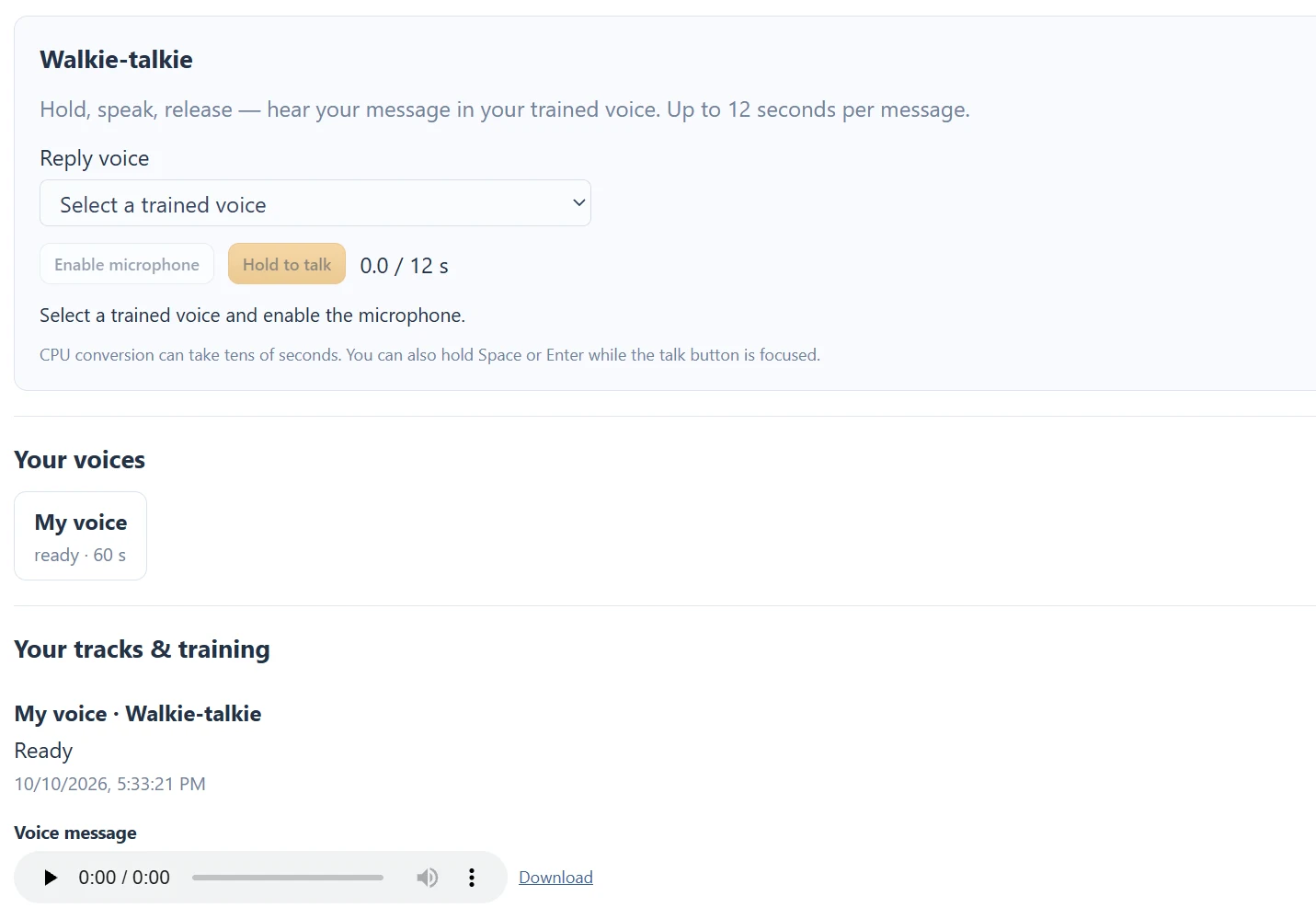
Keep control of recordings you need.
Download copies of outputs you want to retain. For questions about processing or a request to delete account data, use the published support and data-deletion instructions. The current voice screen does not provide a public sharing button or a model-delete control.
The Privacy Policy explains account and media processing. Microphone permission, training consent and permission to publish an output serve different purposes; one does not replace the others.
Questions about this workflow
Does allowing the microphone start training?
No. Recording and training are separate actions. Select the sample, confirm own-voice consent and submit Train my voice to create a training job.
Continue with the next useful step
How to Record a Useful Voice Model Sample
Prepare a clean own-voice recording: duration, room, microphone distance, speech and singing before training.
Microphone Gain: Boost Your Voice Without Clipping
Use the input meter, −12 to +24 dB boost and original/processed playback to prepare a clean voice recording.
Voice Conversion vs Text-to-Speech
Choose between changing recorded sound, generating speech from text and transcribing a recording.