
A box is a moment. A track connects moments.
Track supported people and vehicles in a submitted video. Compare grouped observations, crops and timestamps without writing detection or tracking code.
Free account · No card required · Uploaded recordings, processed in the background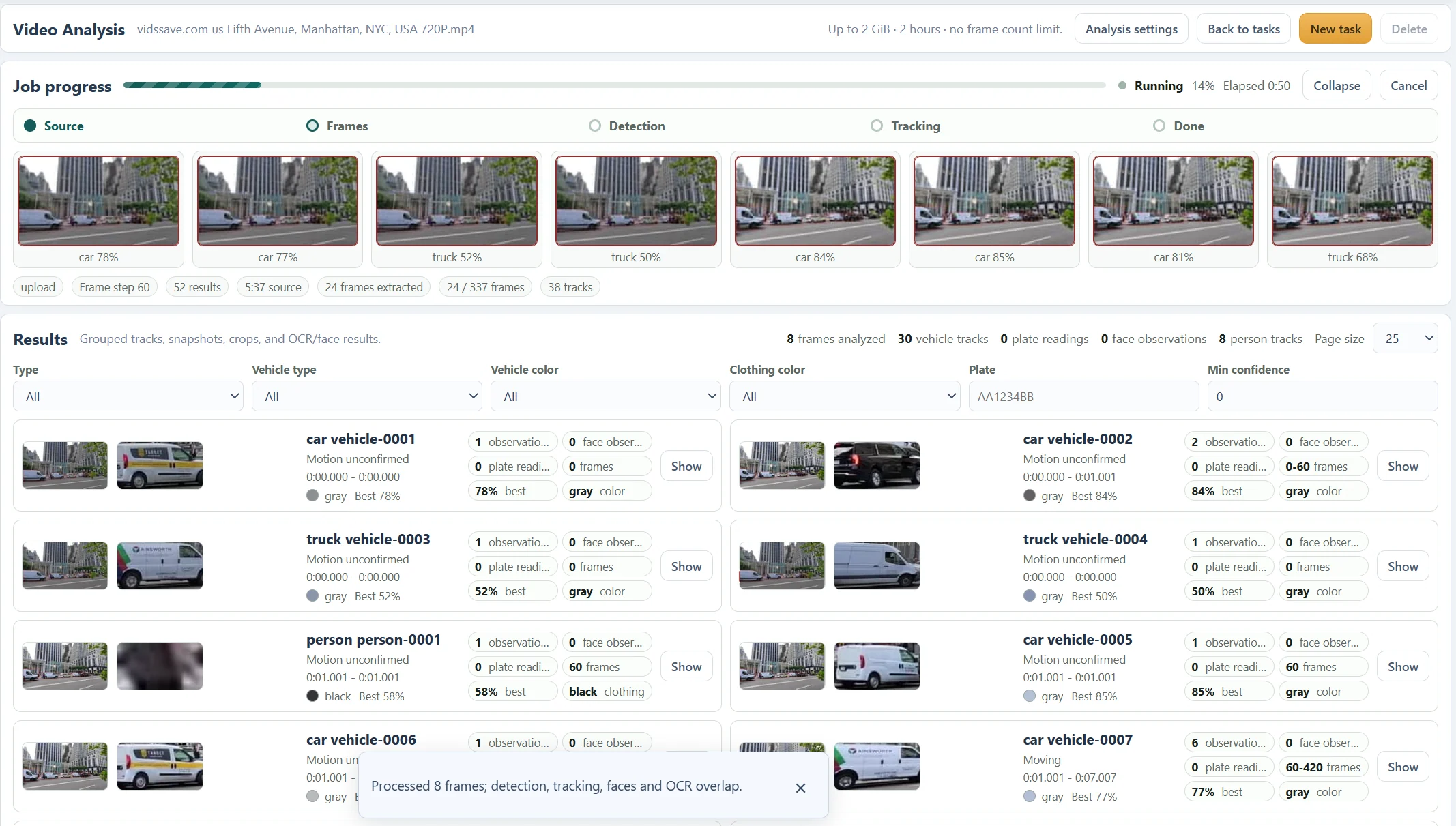
From the source to the useful frame.
- 01
Choose a supported subject
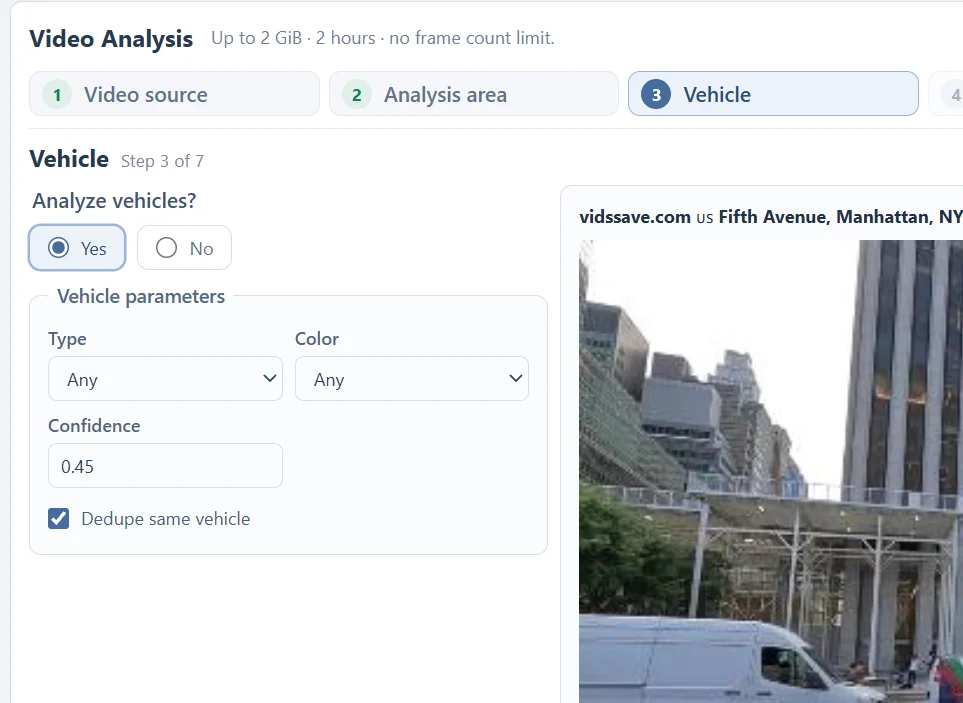
Use Person or the available Vehicle types.
- 02
Select the area
Keep the object visible inside the saved boundary.
- 03
Set sampling
Use a shorter interval for brief or fast movement.
- 04
Run the task
Review the settings and submit the recording.
- 05
Check the association
Expand a track and compare its crops over time.
Track the subjects this workspace supports.
The available modes cover people and vehicles: car, truck, bus and motorcycle. Vehicle type and color and person clothing color can help narrow a task. License plate readings and face observations add detail when those modes are enabled.
Object tracking here means linking observations from these supported modes. There is no interface for uploading a custom detector or selecting arbitrary objects such as packages or animals. For a vehicle-specific task, use the dedicated vehicle workflow explanation.
Read continuity without assuming certainty.
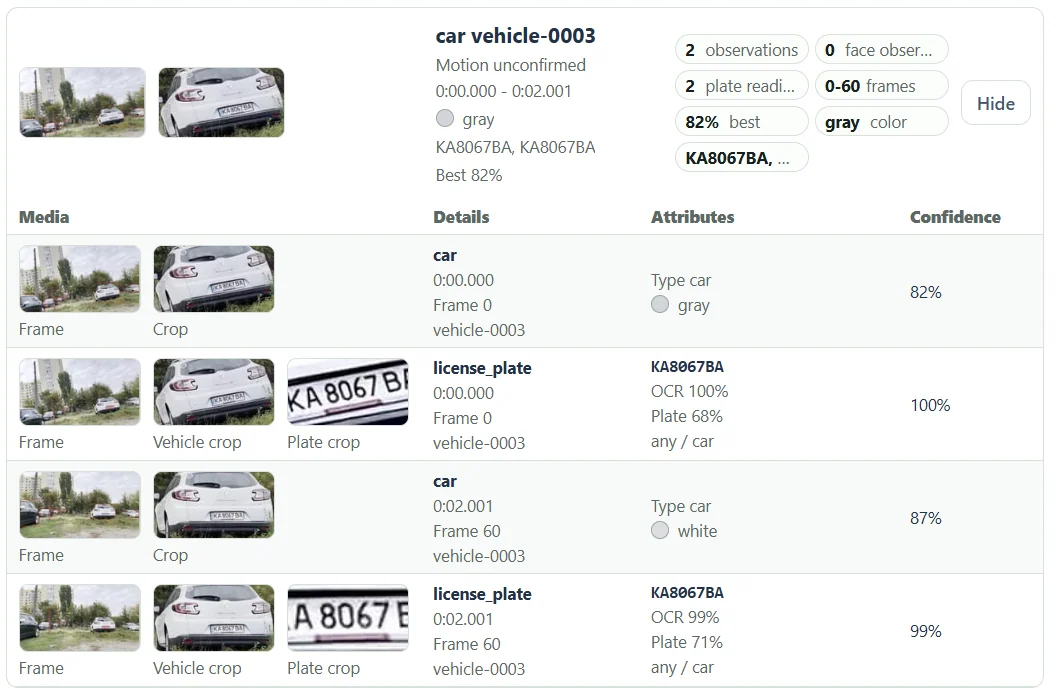
In the close-range example, vehicle-0003 contains two vehicle observations and two plate readings. The crops let you check whether the association makes sense. A track identifier only has meaning within its own task.
A single observation cannot establish movement. Motion unconfirmed indicates that the available observations do not establish a motion classification. A moving label describes the system’s estimate; it does not establish a route outside the recorded view.
When an object disappears behind another object, crosses a boundary or reappears after a cut, it may receive a new track. Counting track cards as unique real-world objects can overcount the scene.
Test the question on a short range.
Select a representative interval containing an arrival, crossing or departure. Start with an area that includes the whole useful path, then choose a sampling interval that leaves several observations during the event.
Compare the original frames and expanded tracks before submitting a longer recording. If the event falls between samples, lower the frame interval. Lowering a confidence threshold cannot recover frames that were never analyzed.
Questions about this workflow
Can I close the tab while analysis runs?
After the upload and submission have finished, processing runs in the background. Return to the Video task list to check the job and available results. Keep the tab open while the file is still being uploaded.
What are the current source limits?
The current Video Analysis interface accepts files up to 2 GiB and two hours. Processing and storage limits also apply. Analyze a short representative range first when choosing settings.
Can this follow the same person across separate videos?
Track IDs belong to one analysis job. They are not persistent identities across recordings or cameras.
A useful frame starts with a focused task.
Video Analysis
Analyze an uploaded video without coding. Review vehicle and person tracks, license plate readings, face crops and the timestamps behind each observation.
Vehicle Tracking
Find vehicle appearances in your video, filter supported types and colors, and review grouped crops and timestamps for the passage you need.
Person Tracking
Locate people in an uploaded video and inspect person tracks, clothing colors, source frames and optional face observations in one report.
License Plate Reading
Extract visible license plate text from video frames. Compare OCR readings, detection scores, vehicle crops and timestamps before relying on a result.
Faces in Video
Find face observations inside detected person crops, review their source times and open a selected crop in a separate Face Search.
YouTube Video Downloader
Prepare an available public YouTube video, choose a returned resolution and download the file or use it for Video Analysis. Source restrictions can affect availability.
Read the recording. Understand the report.
Choose a Video Analysis Area of Interest
Use the entire frame, a rectangle or a polygon to focus a video task. Learn how fixed boundaries affect moving subjects and camera movement.
Choose a Video Frame Sampling Interval
Balance coverage and processing with source-frame intervals and optional adaptive sampling. See why short events need closer sampling.
Video Tracks vs Observations: Read the Results
Understand track groups, individual detections, plate readings and face observations without treating track totals as unique people or vehicle counts.
Understand Video Analysis Timestamps and Frame Numbers
Read source times, frame indices and track ranges. Learn how trimming, sampling and variable frame rates affect the times shown in a video report.
Video Analysis File Formats and Upload Requirements
Check size, duration, containers, codecs and browser previews before submitting a video. Keep the original when preparing a compatible copy.
Troubleshoot Video Analysis: Uploads, Missing Results and Tracks
Work through source errors, empty reports, missing plates, fragmented tracks and processing delays with focused checks before rerunning a video.
Object Tracking vs Detection in Video
Learn the difference between locating objects in a frame and linking observations across frames, with practical examples from the Video Analysis report.
See what your media
can do for you.
Create your free accountNo card required. Start with a Free account.