
Troubleshoot Video Analysis: Uploads, Missing Results and Tracks
Work through source errors, empty reports, missing plates, fragmented tracks and processing delays with focused checks before rerunning a video.
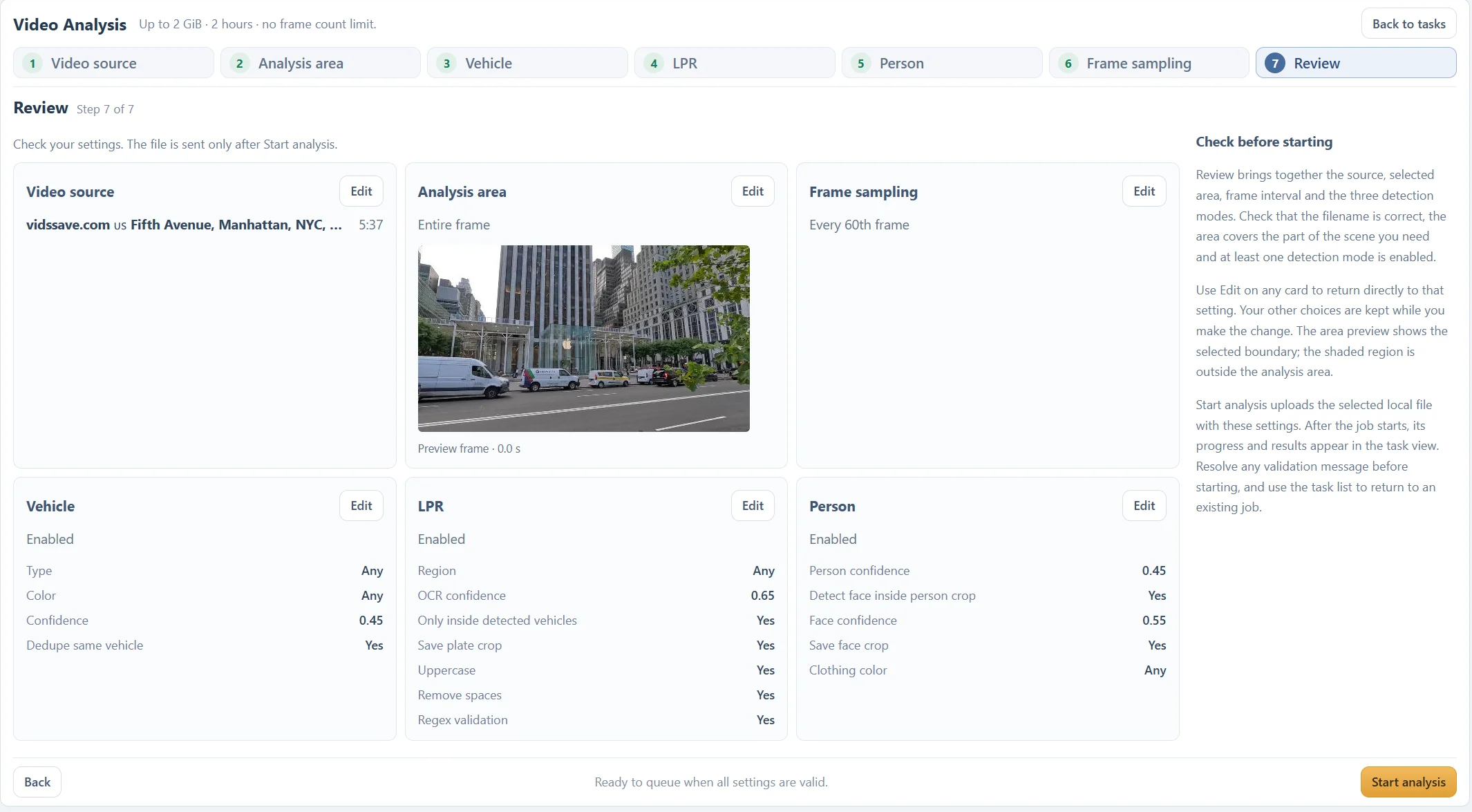
Updated · Cyber Search MatchStart with the job state, then check the source range, saved area, enabled modes and frame interval. A missing result can come from skipped frames or excluded image regions as well as detection confidence. Change one setting at a time on a short test range.
If upload or preview fails, check the file first.
Confirm the actual source is within 2 GiB and two hours and contains a readable video stream. Wait for local metadata or compatible-preview preparation to finish. An incomplete camera export may open briefly in one player and still fail later decoding.
Try a short fresh export or a compatible copy while preserving the original. A filename extension change is not a conversion. If a YouTube source is blocked, private or unavailable, upload a local recording you are permitted to use instead.
If a known subject is missing, follow this order.
Confirm that the selected interval includes the event. Check the saved area at several preview times, especially for moving cameras. Then confirm Vehicle, LPR or Person is enabled as required.
Remove unnecessary type or color restrictions and inspect with a broad results filter. A minimum confidence filter can hide already-produced records. It cannot add frames or detections to the completed analysis.
Reduce the frame interval for a brief appearance. Only then test a lower detection threshold if the subject is visible but difficult. Reanalyze a short range and compare the source crops, not just the counter.
If people appear but plates or faces do not, check detail.
LPR requires legible plate detail. When Only inside detected vehicles is enabled, Vehicle analysis must also be enabled and must detect the vehicle. Save a plate crop and inspect blur, angle and glare.
Face detection is optional inside person crops. Enable it, check its threshold and keep a saved crop when needed. A high person confidence does not guarantee that the face has enough pixels or a useful angle.
A separate Face Search can return no results even for a clear crop because the public index has limited coverage. Video face detection and public-index matching are different operations.
If progress or tracks look unexpected, inspect the state.
Queued means the task is waiting for processing capacity. Running screens can show partial results and changing counters. A long recording, closer frame sampling or adaptive sampling can increase work; elapsed time is not a promised completion time.
Cuts, occlusion, sparse sampling and similar-looking objects can fragment tracks or create uncertain associations. Inspect expanded observations and the original recording rather than treating track totals as unique-object counts.
Check the task again from the Video list if the page appears stale. Use Cancel if you need to stop a job, and wait for its reported state before submitting repeated copies. For a failure, send support the task reference, error and relevant settings so the problem can be investigated.
Questions about this workflow
Should I lower all thresholds to get more results?
Start with range, area, modes and sampling. Lower thresholds can add false detections and do not repair missing source detail. Compare one change at a time.
Why are the counters different from a screenshot?
A running task has partial results, and different modes, sampling or source ranges produce different observations. Screenshots are examples rather than expected benchmark counts.
Continue with the next useful step
Video Analysis File Formats and Upload Requirements
Check size, duration, containers, codecs and browser previews before submitting a video. Keep the original when preparing a compatible copy.
Choose a Video Frame Sampling Interval
Balance coverage and processing with source-frame intervals and optional adaptive sampling. See why short events need closer sampling.