
How to Choose a Target Video File Size
Work from a sending limit to a video bitrate, choose resolution and audio settings, and check the actual download size.
Updated · Cyber Search MatchTrim first, leave space below the destination’s limit, then use Target file size with a known audio bitrate. Treat the estimate as a starting point and check the completed file before sending it.
Start with the limit and the useful duration.
Check the limit shown by the destination when you send the file. Limits can change and may differ between account types; this guide does not assume a particular email or messaging allowance. Keep the original separately and decide which part the recipient actually needs.
The converter uses MiB: one MiB is 1,048,576 bytes. A service advertising MB may use 1,000,000 bytes. For a hypothetical 25 MB limit, a 22 MiB target leaves some room; 25 MiB would already exceed 25 decimal MB before allowing for variation.
Translate size and duration into a bitrate budget.
For a selected 120-second video, a 22 MiB budget is about 1,538 kbps for all streams before overhead. The converter reserves 2% of the budget, then subtracts the estimated audio bitrate. With one 128 kbps audio track, the calculated video budget is about 1,379 kbps.
Longer duration means fewer bits per second for the same size. Multiple retained audio tracks each use part of the budget. Unknown or variable audio bitrate cannot provide a predictable budget: choose encoded constant-bitrate audio, remove unneeded sound, or use a known source bitrate.
| Example input | Starting value |
|---|---|
| Selected duration | 120 seconds |
| Target file size | 22 MiB |
| Encoded audio | 128 kbps CBR, one track |
| Calculated video budget | About 1,379 kbps; actual output can vary |
Set the budget in the workspace.
Upload the file, inspect its tracks and select Precise cut. In Advanced settings, choose a compatible video codec, set Video size / quality mode to Target file size and enter the MiB budget. Set the audio bitrate mode to Constant bitrate when the codec supports it. Review the estimate before saving.
Start with a resolution that suits the subject. A talking head may remain useful at 720p or 480p; small on-screen text may need more detail. The resolution changes how well the available bits describe the scene. It does not by itself guarantee a file size. Two-pass encoding can improve bitrate allocation where the chosen encoder supports it.
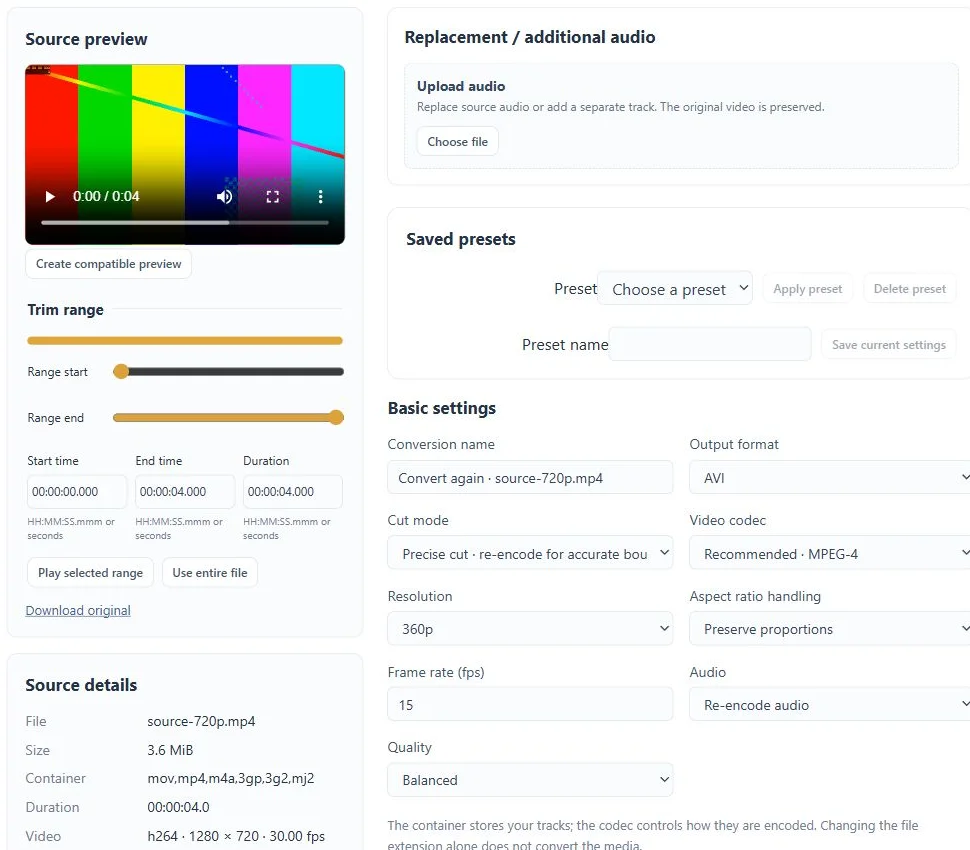
Check the requested output, then adjust one thing.
The result page shows the actual file size, duration and source/output properties. Play a section with motion, quiet speech and any text the recipient must read. A short preview helps judge appearance, but is not a prediction of the final file’s size.
If the result exceeds the limit, lower the target or shorten the range and convert again. If it fits but looks poor, try a shorter clip or a more modest resolution before reducing the bitrate further. Download the requested result, rather than a separate lightweight viewing preview.
Before you finish
- The destination’s current byte limit is known.
- The selected duration and required audio tracks are correct.
- The downloaded result fits the limit and remains understandable.
Questions about this workflow
Does Target file size guarantee an exact number of bytes?
No. It calculates a bitrate budget; container overhead and encoder behaviour can change the result. Leave headroom and check the completed output.