
Your photo. Every reference face.
Compare each face in your photo with every face in a group reference. Inspect paired portraits, vector similarity and a technical report, then search a selected face.
Free account · Group reference required · JPEG, PNG & WebPA clear route through a group comparison.
- 01
Bring your photo
Photo 1 can contain one face or several.
- 02
Add a group reference
Photo 2 must contain at least two detected faces.
- 03
Inspect every pair
Compare portraits and scores in the Compared report.
- 04
Choose a search
Send one source person crop to Face Search when you want to explore indexed sources.
One portrait against a group. Or one group against another.
Start with the question you want to answer: how visually similar is the face in your photo to each face in a reference group? Put your portrait in Photo 1 and the group in Photo 2. You do not need to crop the reference into separate files or choose a single reference person.
Photo 1 can also contain several faces. Each detected source face is compared independently with every detected reference face. This lets you inspect two group photos in one report. Face numbers belong to their own image: Face 2 in Photo 1 and Reference 2 in Photo 2 are not assumed to be the same person.
If Photo 2 contains only one detected face, Multi compare asks for a group reference. Use ordinary Compare faces when you want to compare against one portrait or select just one person from a group.
Every detected face gets every reference.
The interface first checks the reference detections. Once it finds at least two faces, all reference faces are included automatically. During comparison, the server processes the source and reference photos sequentially, then reuses their face representations for every pair. It does not run recognition again for each card.
With N source faces and M reference faces, the report contains N × M pairs. One portrait and six reference faces produce six comparisons; two groups of nine produce 81. Repeated portraits can produce several detections, so these numbers count detected faces and pairs, rather than unique people.
Pairs are independent. Several references can have a strong score for the same source face, and the report does not force a unique winner or a one-to-one assignment between groups. A high-scoring pair still needs inspection in the original images.
1 source face × 6 reference faces = 6 pairs9 source faces × 9 reference faces = 81 pairs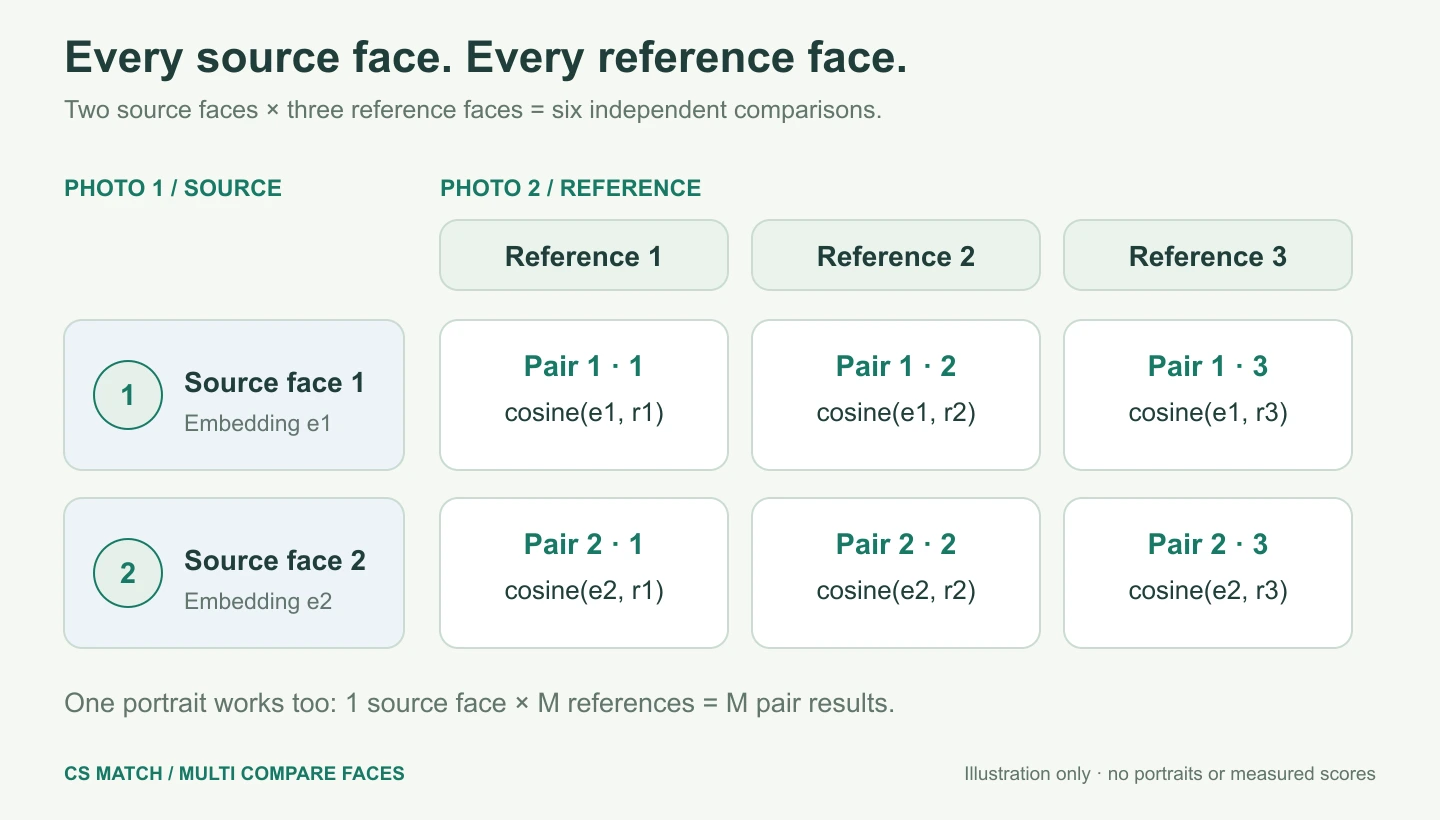
See the source, the score and the exact reference together.
Compared opens by default. Each card places the detected source face beside its specific reference face, with the percentage, raw Vector similarity and detection confidence between them. An orange Search this face button sits beneath the source portrait; a short interpretation appears beneath the reference. Either portrait opens in the full-screen viewer.
The desktop report shows three paired cards per row and adapts to one column on phones. All pairs are sorted by similarity from highest to lowest before pagination; equal percentage values use raw vector similarity to break ties. Unavailable pairs appear last. Large reports show up to 24 pairs per page, with Previous and Next controls. The strong, inconclusive, low and unavailable counters summarize the entire report, including pairs on other pages.
Cards is an alternative view of the same completed result. It names the reference face for each comparison. Switching views or pages does not calculate new scores. Source and reference numbers help you return to the corresponding detections in the original photos.
| Report element | How to use it |
|---|---|
| Source face and Reference number | Confirm which two detections this card compares. |
| Detection confidence | Confidence that the source detector found a face; separate from similarity. |
| Similarity percentage | A clipped display scale for this pair, not an identity probability. |
| Vector similarity | The raw cosine comparison of the two numerical face representations. |
| Technical interpretation | Strong, inconclusive, low or unavailable according to the existing comparison rules. |
| Whole-report counters | Counts of all evaluated pairs, not unique people or only the current page. |
A comparison of learned representations.
The current Face Analysis pipeline detects faces with SCRFD, uses facial landmarks to align each face to a 112 × 112 RGB model input, and calculates a normalized 512-value embedding with the pretrained ArcFace recognition checkpoint. These coordinates are learned features used together; they are not a list of named anatomical measurements.
For each source–reference pair, cosine similarity measures the relationship between its two vector directions. The application uses the same percentage mapping and technical decisions as ordinary Compare faces. In the inspected configuration, raw values at or below 0.45 display 0%, and values at or above 0.72 display 100%. The raw score preserves distinctions hidden by that clipping.
The technical label uses the unrounded internal score, while the percentage shown in the card is rounded. Read both alongside the portraits. A face that cannot be aligned or represented produces unavailable pair scores; an unavailable comparison is not evidence of low similarity.
From a comparison to a deliberate database search.
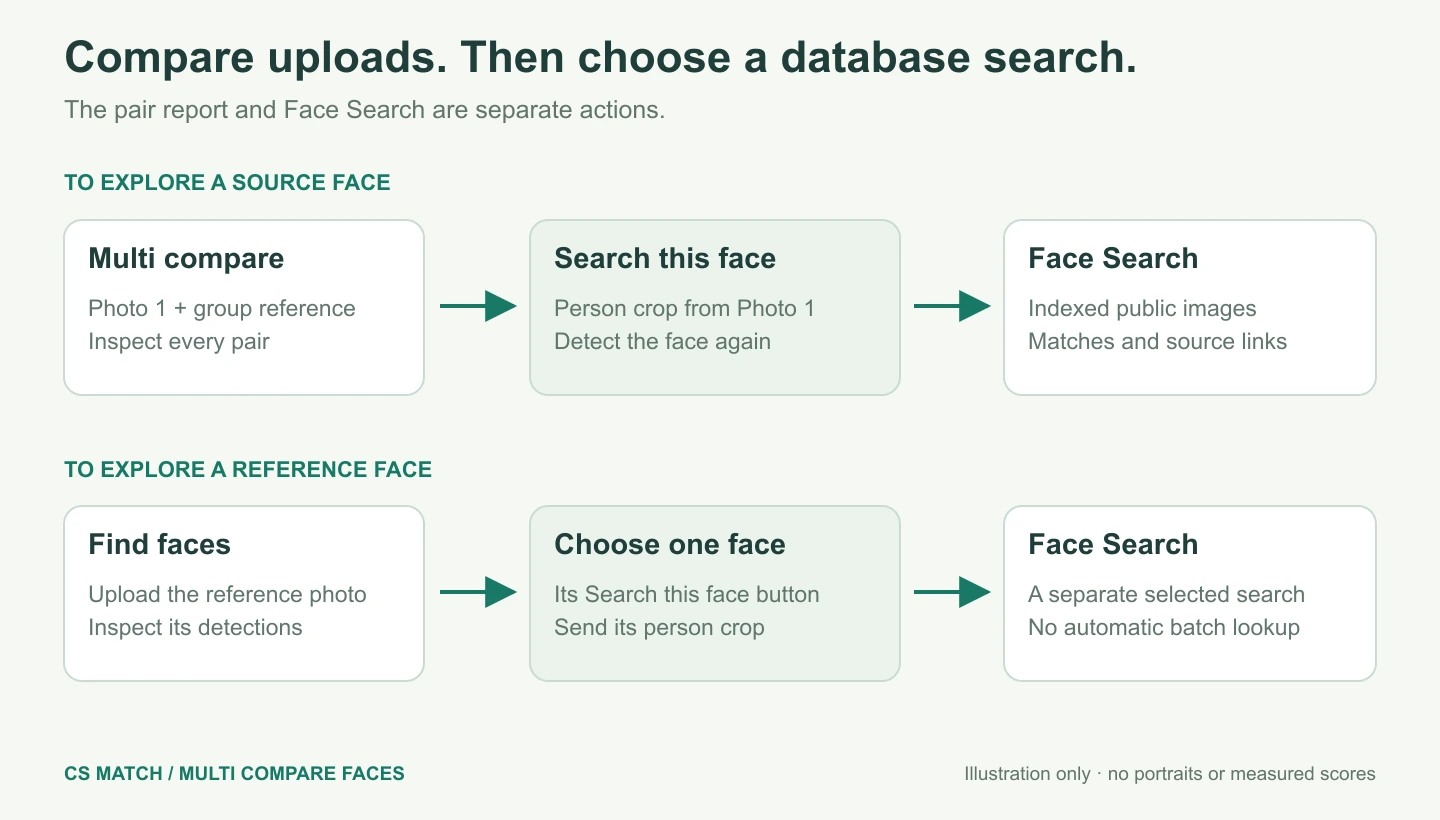
Multi compare examines the two photos you upload. It does not automatically search the public image index or the whole internet. When you want to explore sources for a face in Photo 1, use Search this face on its comparison card.
That action opens Face Search with the source person’s context crop. Face Search detects the face again before searching the project’s indexed public images. You can inspect ranked matches, source domains, image variants and the separate Similar faces gallery there. If Photo 1 contains one portrait, its search buttons refer to that same source face across the reference comparisons.
To search the people from your reference group instead, open Find faces and upload that reference photo. Each detected person then has a separate Search this face action. The comparison cards themselves search the source face from Photo 1; the reference image is available for inspection.
Make both photos useful for comparison.
Each photo must be a still JPEG, PNG or WebP, up to 8 MiB and 20 megapixels. The reference needs at least two detected human faces; Photo 1 needs at least one. Images are oriented and reduced to fit within 4096 × 4096 pixels for analysis. The existing detector limit is 200 faces per image; larger groups need to be split.
Use clear, sufficiently large faces with comparable angles and lighting. A wide crowd photograph may contain people whose faces occupy too few pixels for a useful result. Blur, coverage and strong pose changes can cause missed detections, low scores or unavailable comparisons. Enlarging a tiny face does not restore missing detail.
For sideways or differently tilted heads, enable Enhanced tilted-face detection before comparing. The tool checks eight orientations in both photos and merges repeated detections. Numbered boxes stay on the original image; the person crops are rotated upright so Search this face can detect them again. Changing this setting clears the earlier report and reference selection.
If a reference contains several visible people but the detector finds only one, try a clearer group image or a smaller group crop. Inspect the numbered detections before interpreting the report. Finding a box, receiving 100%, or receiving no strong pairs does not establish anyone’s identity or absence from a group.
Your comparison does not add people to the public index.
Face Analysis processes the photos on the server and returns previews, detected crops and pair scores. The embeddings are removed from the browser response. Uploads and comparison vectors are not published or inserted into the public face index, and comparing a photo does not train a new model.
The current form and report remain available while you move between workspace sections in the same signed-in session. Reloading or signing out clears that analysis; this is not a permanent comparison history. A database search and any choice to share a saved search result are separate actions. Use photos you are entitled to process.
Questions about this workflow
Can I compare my portrait with everyone in one reference photo?
Yes. Put your portrait in Photo 1 and a reference with at least two detected faces in Photo 2. One source face and M reference faces produce M independent comparisons.
Can both photos contain several faces?
Yes. N detected faces in Photo 1 and M in Photo 2 produce N × M pairs. The entire report is sorted by similarity, highest first, with source and reference numbers on every pair.
Why does a single-face reference get rejected?
Multi compare is intended for several reference faces. Use Compare faces for a single portrait or to choose one person from a group.
Does it search every reference face in the database automatically?
No. The report compares your two uploads. Search this face opens a separate search for a source face from Photo 1. To search people from Photo 2, upload that photo in Find faces and choose their search actions.
Does a 100% result prove it is the same person?
No. The percentage is a clipped technical-similarity scale, not an identity probability. Inspect the raw score, both originals and image quality.
Are pairs omitted when a face cannot be compared?
No. Its pairs remain in the report with unavailable scores. They count separately from low-similarity pairs.
Do later pages use different calculations?
No. Pages and Cards/Compared are views of the same completed comparison. The summary covers all pairs.
Understand the pipeline, the vectors and the limits.
How face detection and alignment work
Follow a photo through CS Match: image preparation, SCRFD detection, five facial landmarks, person crops and 112 × 112 alignment for comparison.
Face vectors, ArcFace and the recognition model
Understand our 512-value face embeddings, RGB preprocessing, L2 normalization, angular similarity and the difference between model training and inference.
How a face is compared with a reference
Follow our exact comparison request: reference selection, two inference passes, cosine similarity, the 0.45–0.72 display scale and report decisions.
Face comparison errors, accuracy and practical limits
Diagnose false matches, missed matches and unavailable comparisons. Learn what image quality changes, how to test results and why a score is not identity proof.